Add a DNS spoof#
Pair a hostname with an IP address so proxied traffic resolves it your way, without editing the system hosts file.
DNS spoofing rewrites DNS lookups so a given domain resolves to an address of your choice. Use it to point a client at a staging IP without editing the system hosts file.
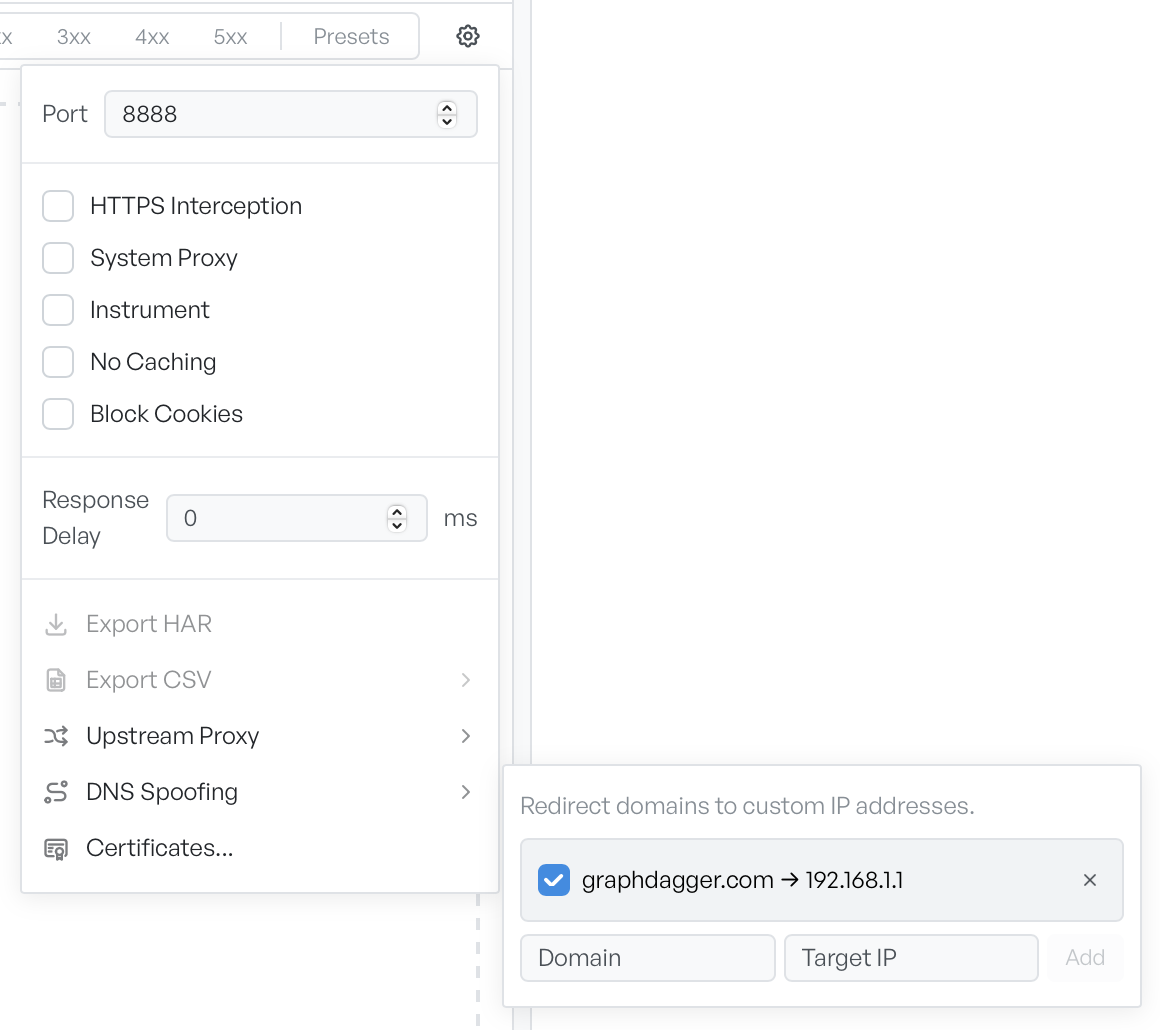
Open the DNS Spoofing dialog#
Open the settings menu and select DNS Spoofing.
Add a spoof entry#
- Enter a hostname in the Domain field, for example
api.example.com. - Enter the IP address it must resolve to in the Target IP field, for example
10.0.1.4. - Select Add. The new entry appears in the list at the top of the dialog.
The spoof applies to traffic flowing through the proxy. Clients that bypass the proxy continue to resolve the host normally.
Remove a spoof entry#
Each row in the list has a delete control. Select it to remove that entry. The list accepts multiple entries, so you can spoof several hostnames at once.
When a DNS spoof helps#
- Point a mobile client at a staging IP: most apps cache the resolved address per session, so an edit to
/etc/hostsafter the app starts is too late. A DNS spoof in the proxy fixes this. - Test a new origin without DNS changes: route a hostname to a candidate IP, capture the traffic, and roll back without DNS propagation.
- Reproduce a region-specific bug: send a public hostname to an IP from a different region's edge.
How DNS spoofing interacts with mapping#
DNS spoofing changes which IP the proxy reaches for a given hostname. Map Remote changes the URL itself. GraphDagger applies the two in that order: a Map Remote rule rewrites the URL first, then GraphDagger resolves the rewritten host with any spoof in place.