Set an upstream proxy#
Point GraphDagger at the corporate or VPN proxy your machine has to go through, with optional credentials and a list of hosts to skip.
If your machine must go through a corporate or VPN proxy to reach the internet, configure that proxy here. The GraphDagger proxy then forwards traffic upstream.
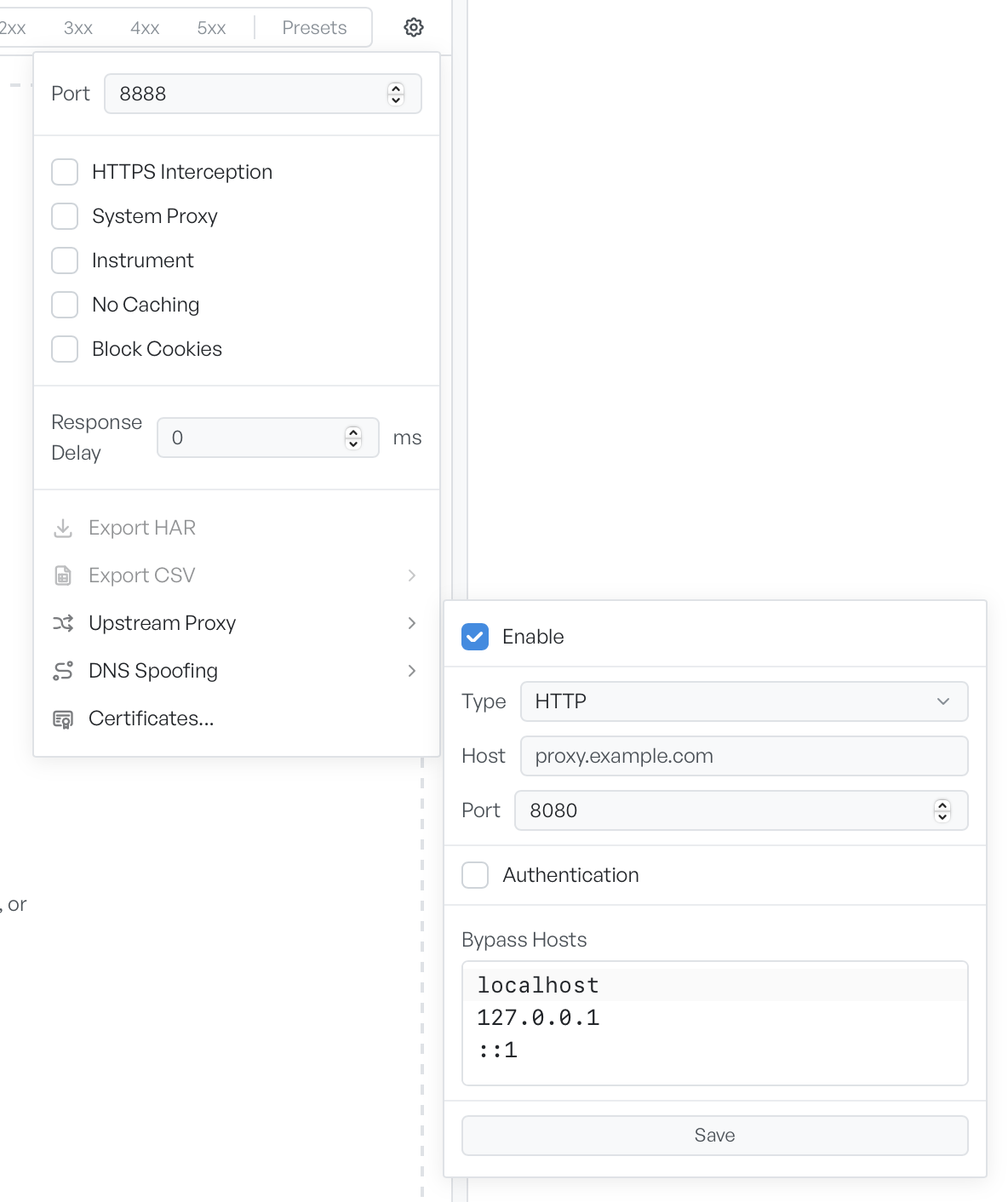
Open the Upstream Proxy dialog#
Open the settings menu and select Upstream Proxy.
What each upstream field sets#
- Enable: master toggle for the upstream proxy. When off, every other field on this dialog is ignored.
- Type: HTTP is always available. HTTPS and SOCKS appear when your environment supports them.
- Host and Port: the upstream proxy address.
- Authentication: turn on to reveal User and Pass fields for upstream proxies that require credentials.
- Bypass hosts: a newline-separated list of hosts that skip the upstream proxy and connect directly. The defaults cover loopback (
localhost,127.0.0.1,::1).
When an upstream proxy is needed#
- You sit behind a corporate proxy: set the host, port, and credentials to the same values your other apps use.
- You use a custom dev VPN that needs a forward proxy: set the dev proxy here so internal hostnames resolve.
- A specific host should not go upstream: add it to the bypass list, one host per line.
How upstream proxy interacts with mapping#
A Map Remote rule rewrites the destination first. GraphDagger then sends the rewritten request through the upstream proxy, unless the new host is on the bypass list. Map Local serves files from disk and never reaches the upstream proxy.