What the settings menu holds#
The gear icon on the recording toolbar opens the menu that controls how the proxy runs, plus the longer upstream proxy, DNS, and certificate dialogs.
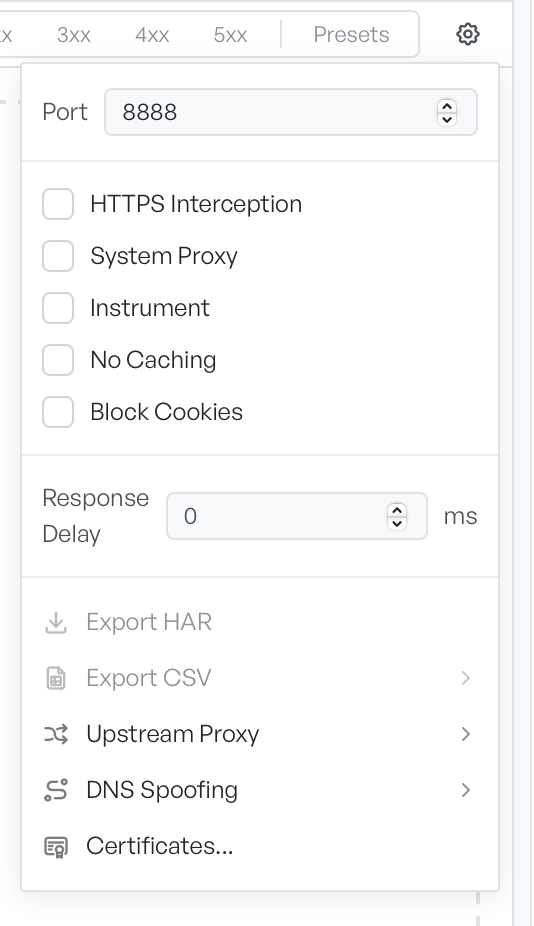
The gear icon on the right of the recording toolbar opens the settings menu. It controls how the proxy runs and gives access to the longer dialogs (upstream proxy, DNS spoofing, certificates).
Every control in the menu#
- Port: the TCP port the proxy listens on.
- Interception toggles: HTTPS interception, system proxy, instrument, no caching, block cookies.
- Response Delay: a fixed delay applied to every response.
- Export HAR and Export CSV: one-shot session exports.
- Upstream Proxy: a proxy your machine has to go through to reach the internet.
- DNS Spoofing: make a domain resolve to an address of your choice.
- Certificates...: the GraphDagger CA certificate dialog.
When settings are read-only#
Most of the toggles are unavailable while a recording runs. To change the port or HTTPS interception, stop the recording first. You can open upstream proxy, DNS spoofing, and the certificate dialog at any time.
What a static HAR file hides#
When the workspace holds a static HAR file, the menu hides the recording-related settings: port, interception toggles, response delay, upstream proxy, and DNS spoofing. These settings have nothing to act on. Export and certificate options stay available.