Add a Map Remote rule#
Give a source host or URL prefix and a target, and every captured request that starts with the source is rewritten to the target.
Map Remote sends matching requests to a different host or path. It is the fastest way to send all production traffic to staging without a change to the client.
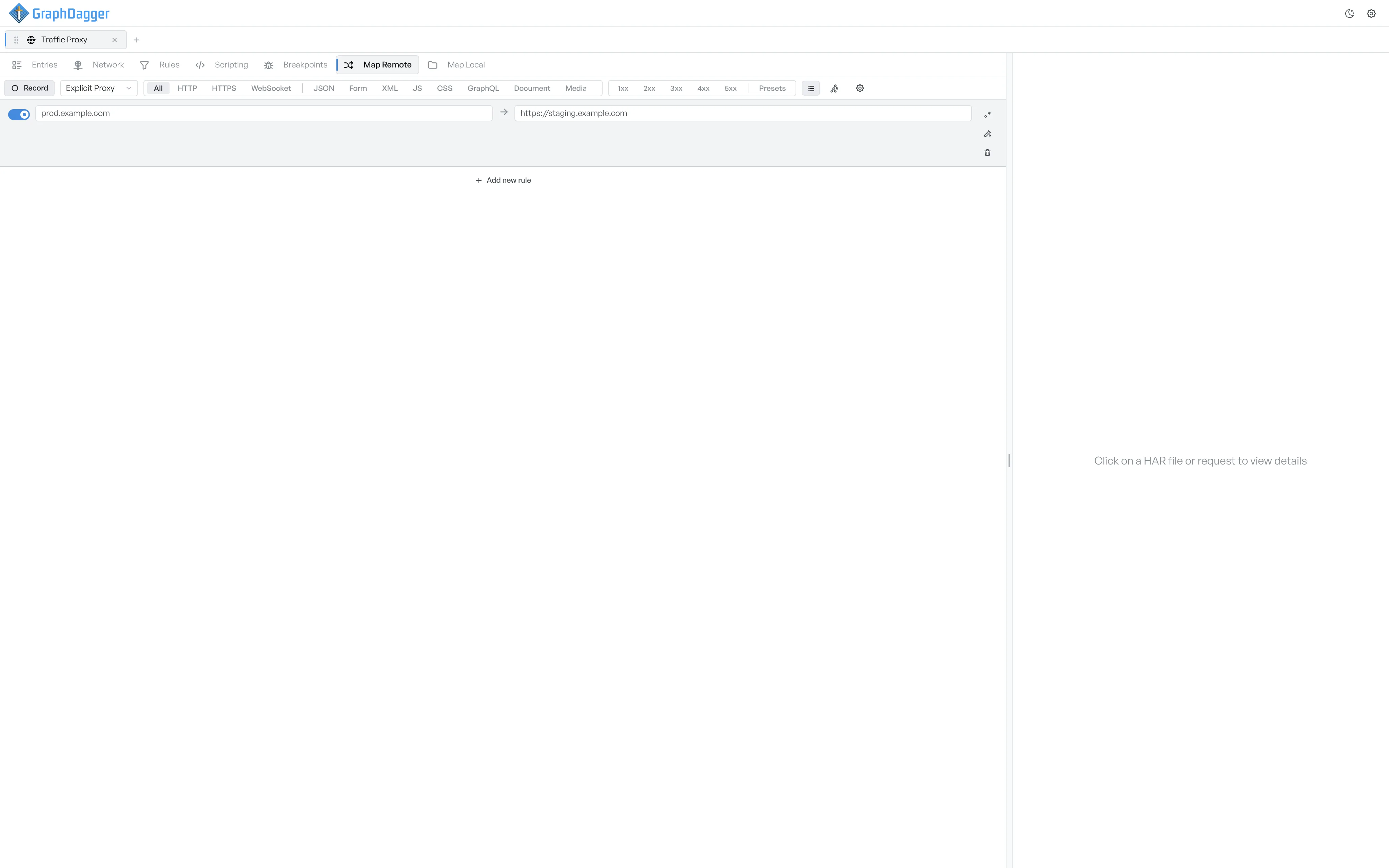
Add a Map Remote rule#
- Open the Map Remote sub-tab.
- Select + Add new rule at the bottom of the list. A new empty row appears.
- Fill in the source field on the left. This is the host or URL prefix to match.
- Fill in the target field on the right. This is where matching traffic should go instead.
Switch a redirect on or off#
The toggle on the left of the row controls whether the rule is active. New rules start enabled. Turn it off to keep the rule on disk without a redirect.
When the rule fires#
A rule fires whenever the captured request URL starts with the source string. GraphDagger rewrites the whole URL to the target and keeps anything after the matched prefix. So a source of prod.example.com and a target of https://staging.example.com rewrites https://prod.example.com/users/42 to https://staging.example.com/users/42.
For richer matching (regex with capture groups, conditional rewrites), see Map Remote with regex.
Remove a rule#
The trash icon at the right of each row deletes the rule. There is no confirmation dialog. You can add the rule again by hand if you need it.
Test a redirect first#
To check a rule against a sample URL without firing a real request, see Testing a Map Remote.