Use regex in Map Remote#
Regex mode reads the source as a regular expression, so capture groups can be placed into the target with $1 and $2.
When a flat host swap is not enough, the regex toggle on a Map Remote rule turns the source into a regular expression. The target can then reference capture groups from the source.
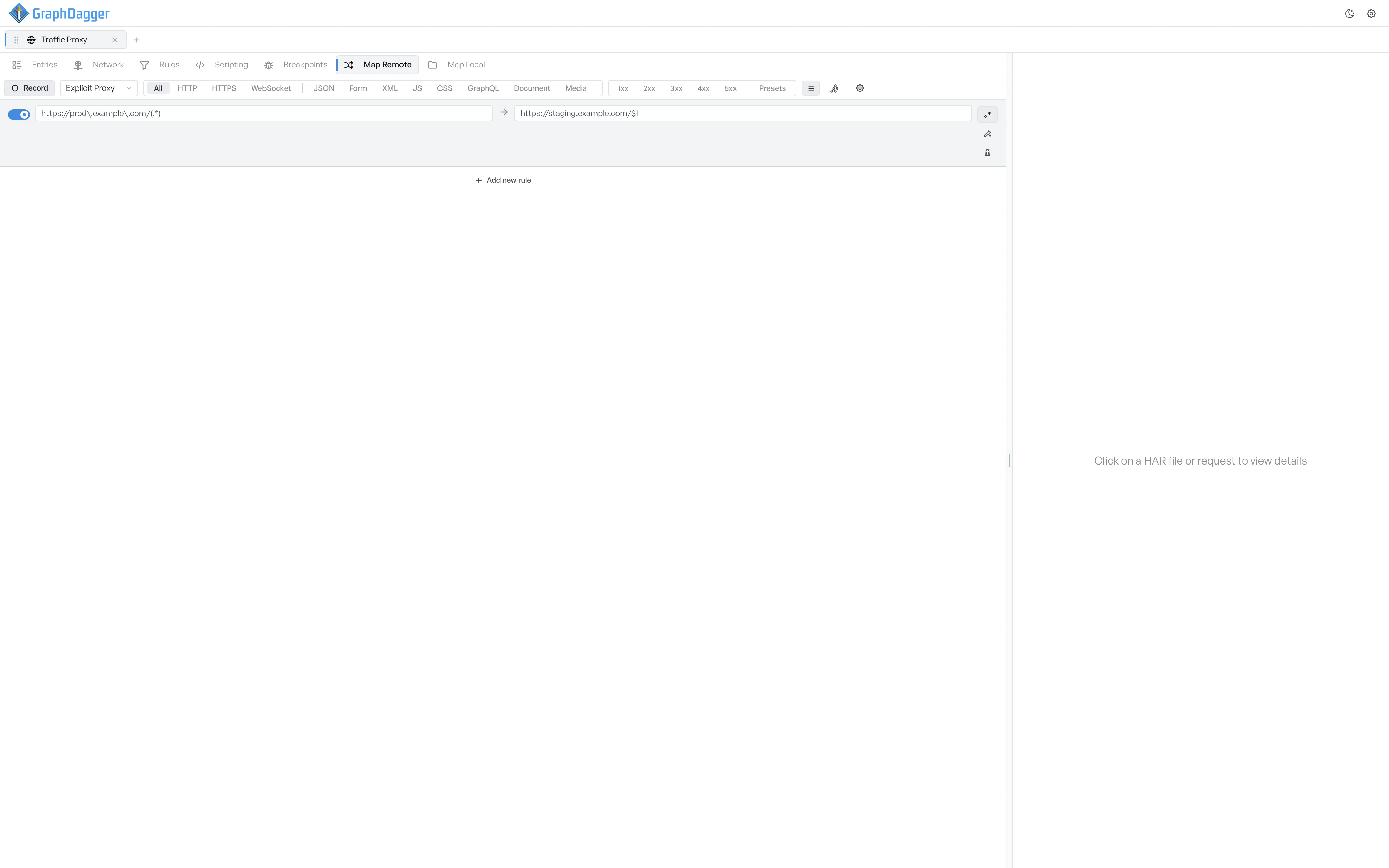
Switch a row into regex mode#
Each row in the Map Remote sub-tab has a regex icon on the right. Select it to switch the row into regex mode. The source field's placeholder changes to a regex example. The target field's placeholder changes to one with $1 references.
How capture groups reach the target#
In regex mode, the source is a JavaScript regular expression. Captured groups ((...)) become $1, $2, and so on, and you can reference them in the target.
A common pattern is to capture the path while rewriting the host:
- Source:
https://prod\.example\.com/(.*). - Target:
https://staging.example.com/$1.
This rewrites https://prod.example.com/users/42 to https://staging.example.com/users/42 while leaving the path untouched.
When to use regex mode#
- Keep the path and change the host: as in the example above.
- Route on a query parameter:
https://api\.example\.com/v1/users\?id=(\d+)tohttps://api.example.com/v2/users/$1. - Conditional swaps: a regex with a non-capturing branch matches more than one host and sends all of them to a single staging URL.
Switch back to simple mode#
Select the regex icon again to switch the row back to simple mode. The current source and target stay in the fields, but they are no longer interpreted as a regex.
Test a regex mapping#
Test a regex mapping before you start a recording. See Testing a Map Remote.