What the SQL editor does#
Type a statement by hand, run all or part of it, and let the editor complete table and function names for you.
A SQL editor lets you write and run statements by hand, for anything the point-and-click views do not cover. It opens as its own tab, with the editor on top and the results below.
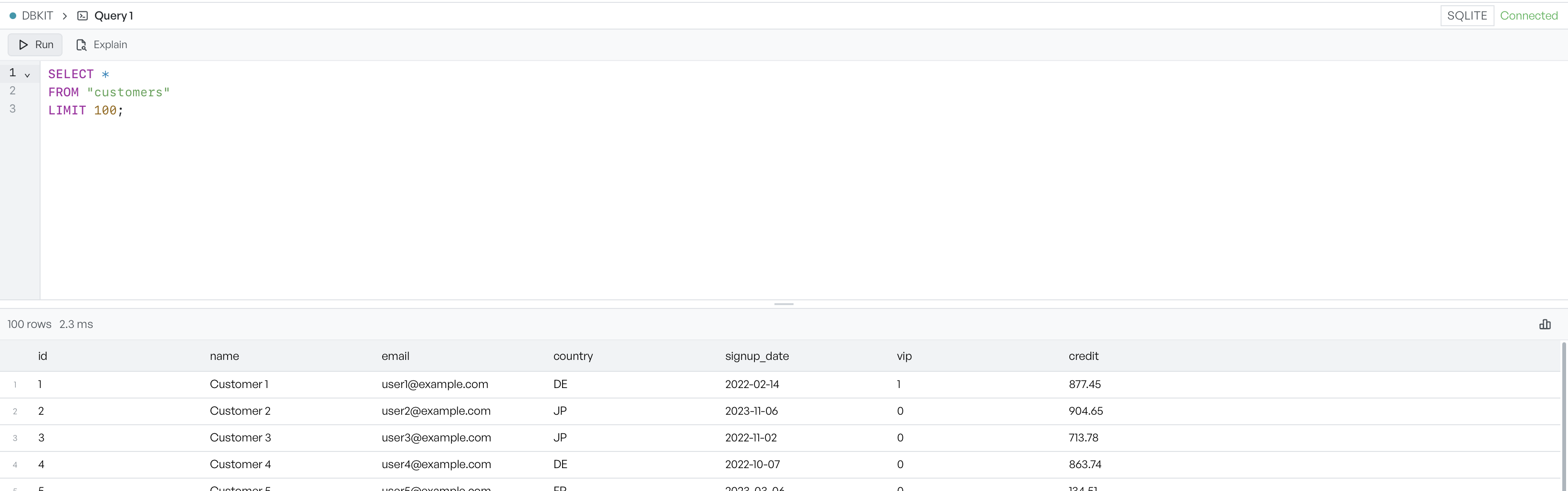
Open one from the plus button in the tab bar, or from a right-click menu. New SQL editor gives you an empty buffer. Generate SELECT writes a ready-to-run query for the table you picked, and that query selects the first hundred rows in the correct form for the engine.
Run a statement#
Select Run, or press Cmd+Enter, to run what is in the editor. To run only part of it, select the text you want and press Cmd+Shift+Enter. Results appear in the grid below with the row count and how long the query took. The same grid loads rows as you scroll, so a large result set is no slower to return.
A statement that changes data or structure reports what it did, such as the number of rows affected, instead of a grid.
Completions as you type#
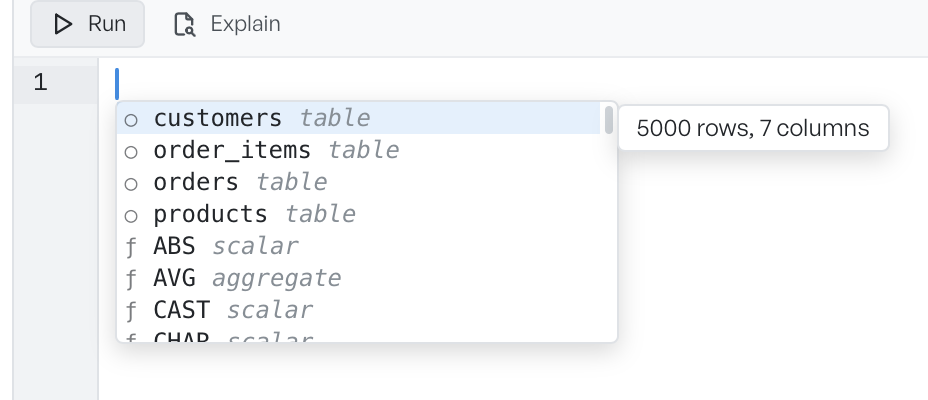
The editor suggests completions as you type. It knows the tables in the current database and their row and column counts. It also knows the SQL functions for the engine, marked as scalar or aggregate. Where a foreign key joins two tables, the editor can suggest the join for you.
Where to go next#
Two more things start from a SQL editor:
- Query plan shows how the database will run a statement.
- Charting results plots a result set as a chart.
You can also edit query results in place, where Database Client can trace a cell back to its source table. See editing rows.