Show, hide, and pin columns#
Shape the table around the run in front of you, and add new columns built from fields found in the trace.
You can shape the table around what you look at: hide the columns you do not need, pin the ones you do, and add new columns built from the data in the trace. Changes last for the session and reset when you close the tab.
Show, hide, and pin a column#
Right-click any column header to open the column menu. The top of the menu lists the standard columns with a tick beside each. Select one to show or hide it. You cannot hide the last remaining column.
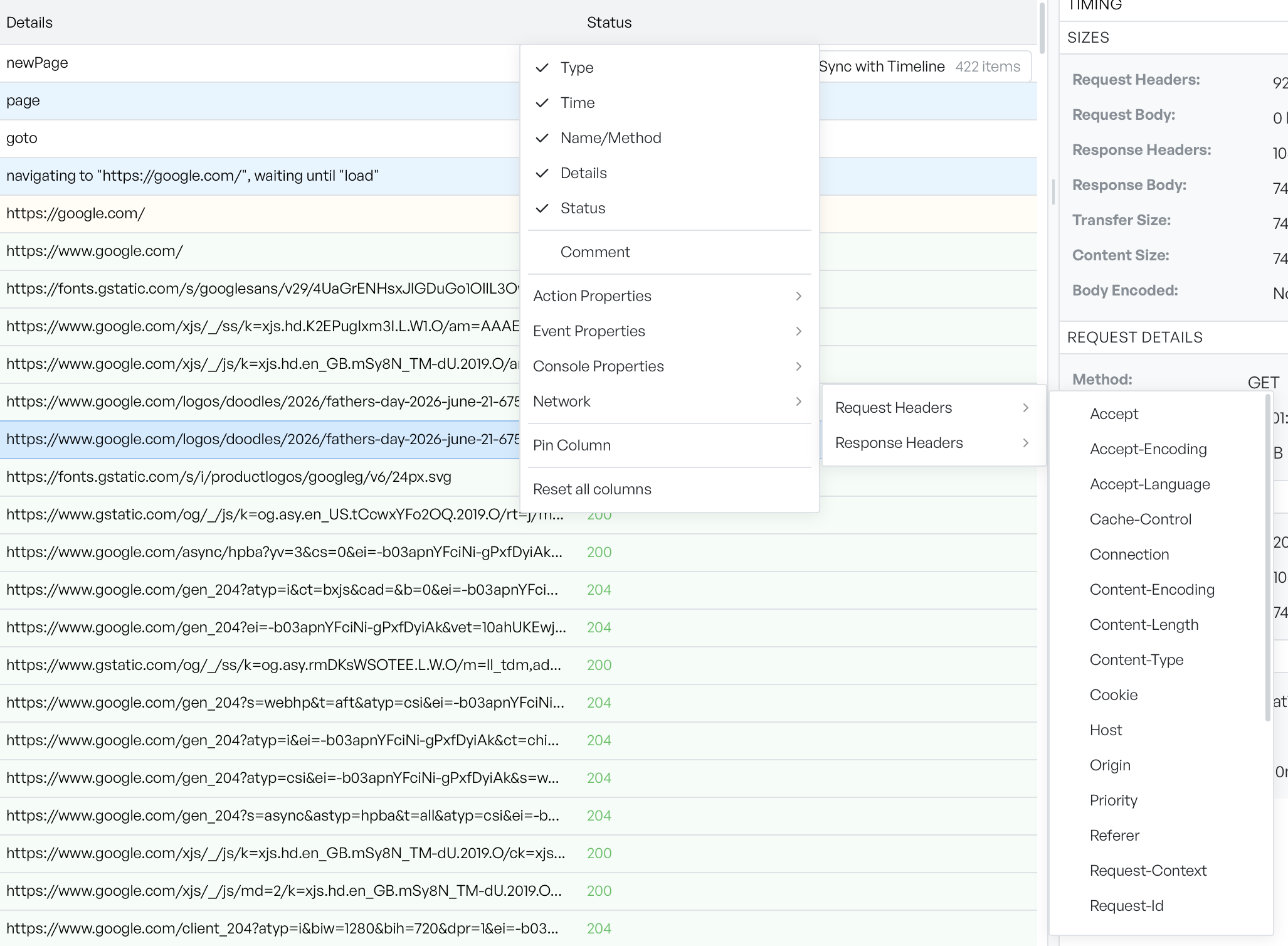
Lower down, Pin Column freezes a column to the left, so it stays in view as you scroll sideways. Unpin Column releases it. Reset all columns returns the table to its starting layout.
Add a column from the trace#
The same menu builds new columns from the fields that are present in the trace. It groups them by where they come from:
- Action Properties, Event Properties, and Console Properties offer the fields found on those rows.
- Network offers Request Headers and Response Headers, so you can pull a specific header, such as content type, into its own column.
Each submenu lists only the fields it found, so the choices match your trace.
Reorder, resize, and sort#
Drag a column header sideways to reorder it. Drag the edge between two headers to resize a column. Select a header to sort by that column: the first select sorts ascending, the second descending, and the third clears the sort. An arrow on the header shows the current direction.