Read the console panel#
The panel under the editor fills with timestamped log and error rows as traffic flows, and you can save it to a file or clear it.
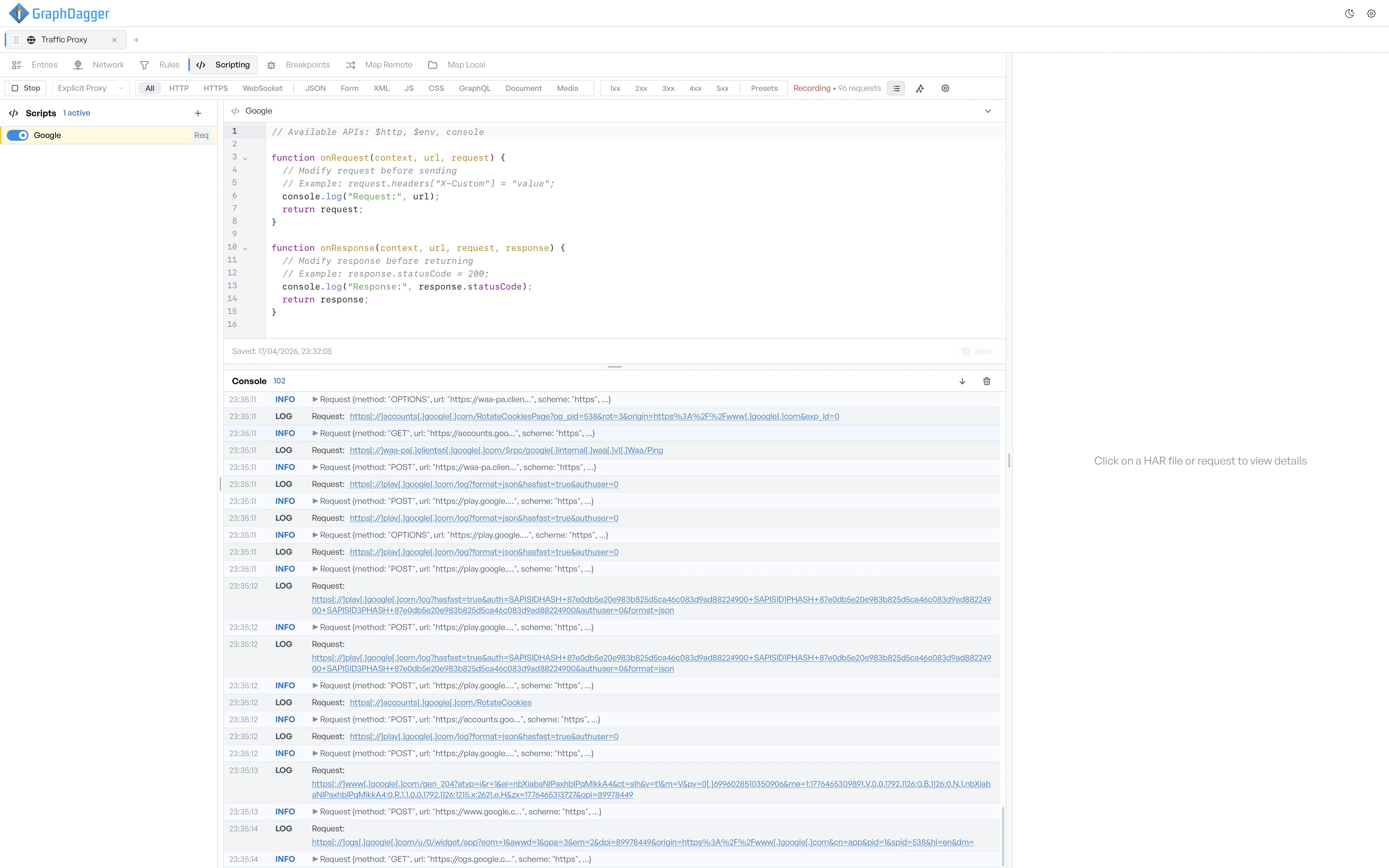
The Console panel at the bottom of the script editor shows console.log and console.error output from every active script. The panel fills in real time while a session records.
What each console row holds#
Each row is one log call. The row contains a timestamp, a tag (LOG or ERROR), and the message. Several scripts can log at once. The panel interleaves the messages by time of arrival.
Resize the console panel#
Drag the divider between the editor and the console to give either side more room. Drag it all the way down to shrink the console to zero height, so it takes no screen space when you do not need it.
Save or clear the console#
Two icon buttons control the console contents.
- The download icon writes the current contents of the console to a file. A native save dialog asks where to put it. The file is plain text with one log entry per line.
- The trash icon clears the console.
When the console clears automatically#
The console clears when you start a new recording. This keeps the output of a previous session separate from the new one. A save of a script does not clear the console.