Trust the CA certificate#
Add the CA to the system trust store so intercepted HTTPS stops raising warnings, and check the fingerprint before you approve the prompt.
After the CA exists, make the operating system trust it. HTTPS interception produces certificate warnings on every site until you grant trust.
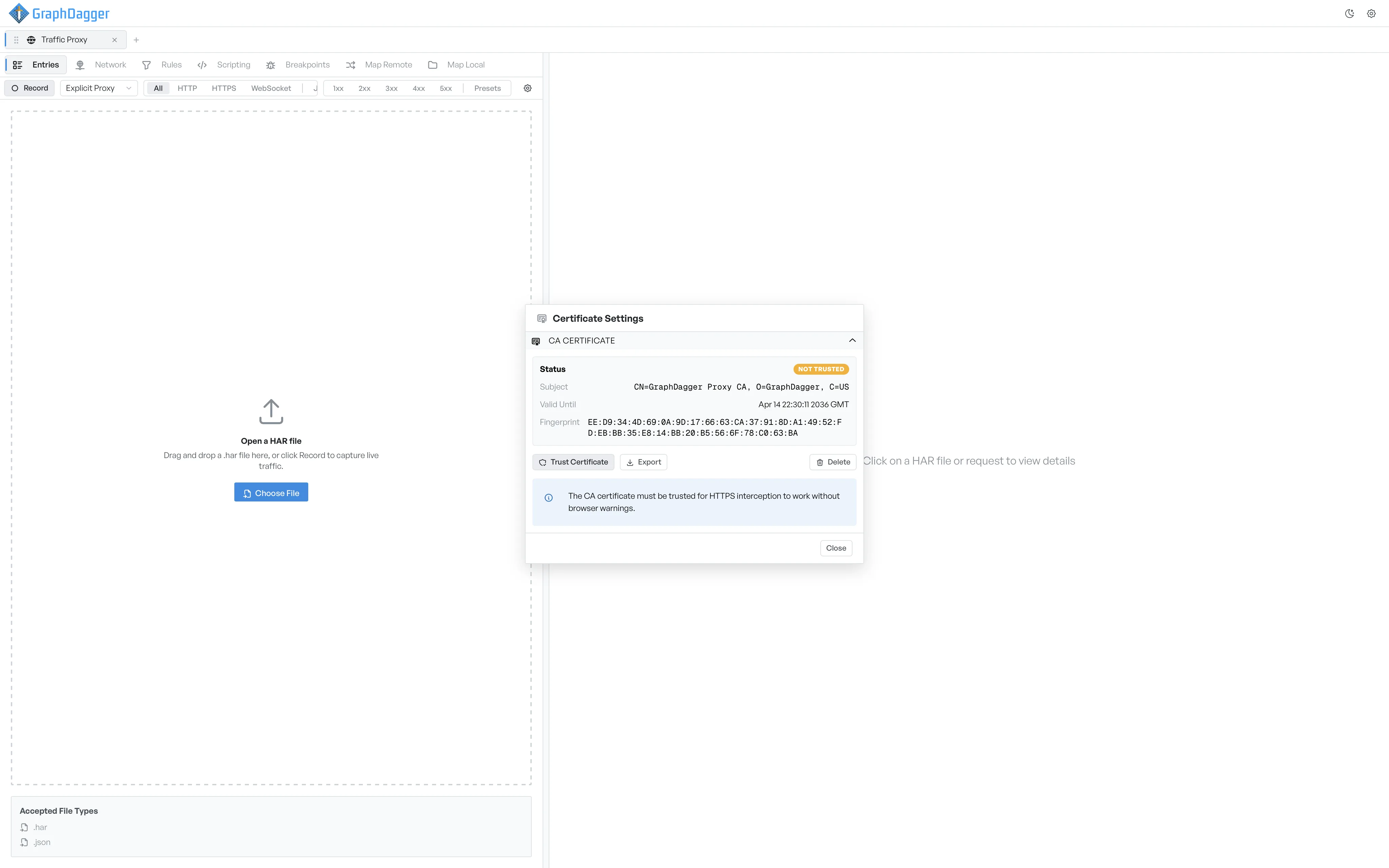
What the Not trusted state shows#
When the CA exists but the system does not trust it, the dialog shows:
- The status Not trusted.
- The certificate's subject.
- The valid-until date.
- The fingerprint, which helps you confirm that you trust the correct certificate.
- Three action buttons: Trust certificate, Export, Delete.
Trust the CA#
Select Trust certificate. The operating system prompts you for confirmation, because a new CA affects system-wide trust. Approve the prompt to add the CA to the system trust store.
When the operating system reports back, the dialog updates to the Trusted state. The status turns green, and Remove trust replaces the Trust certificate button.
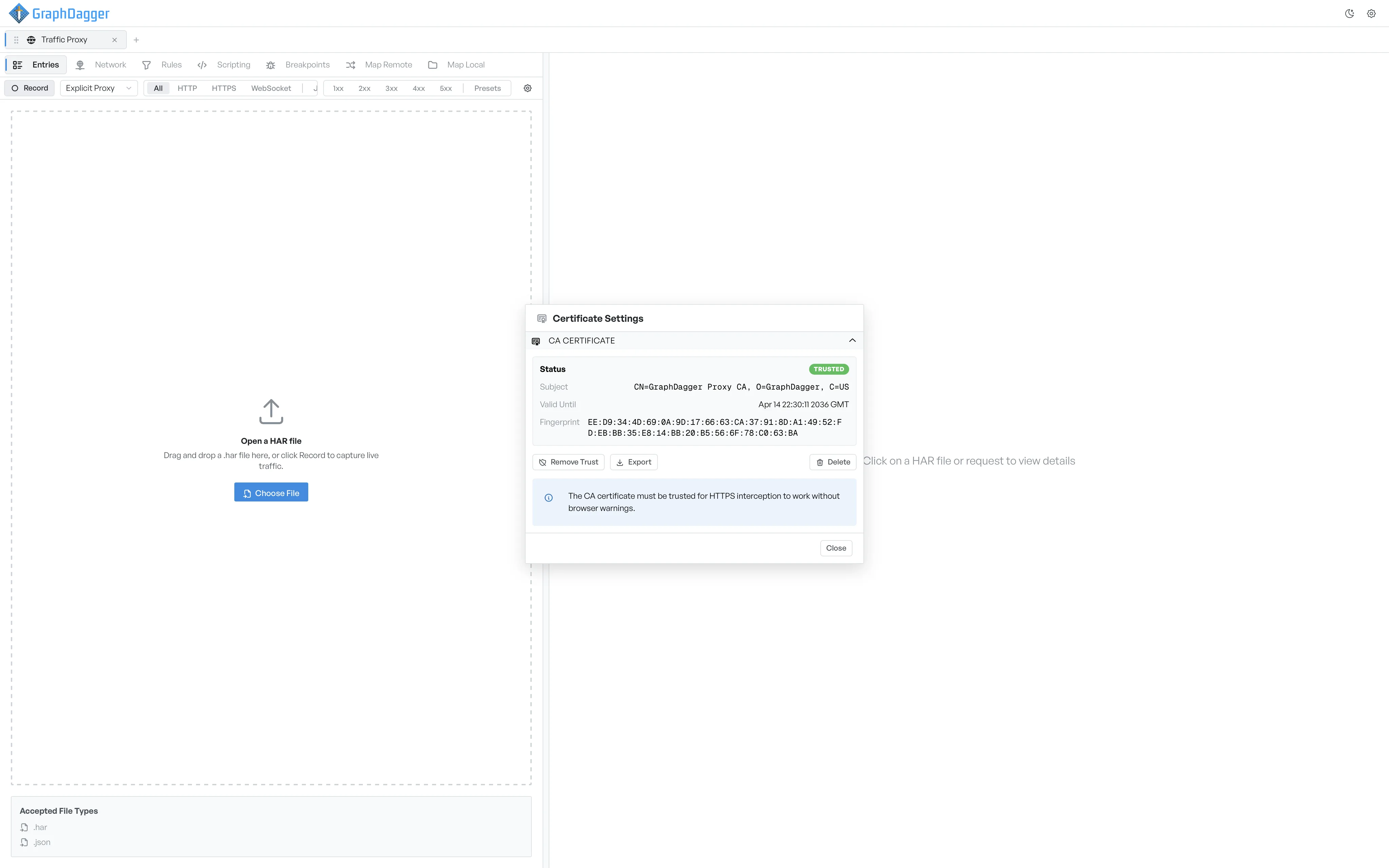
Remove trust#
Select Remove trust to revoke the CA from the system trust store. This does not delete the CA itself. HTTPS interception produces warnings again. The certificate stays on disk, so you can grant trust again later without a new CA.
Check the fingerprint#
The dialog shows the same fingerprint as your operating system shows in its certificate viewer. To confirm that a CA in the trust store came from GraphDagger, compare the two values.