Run OCR on an image#
Recognise the text in an image file, then hover a line to light up the matching box on the picture and copy the lot out.
The OCR tab runs optical character recognition on an image and shows the extracted lines next to the original image. It appears only when the active file's MIME type starts with image/.
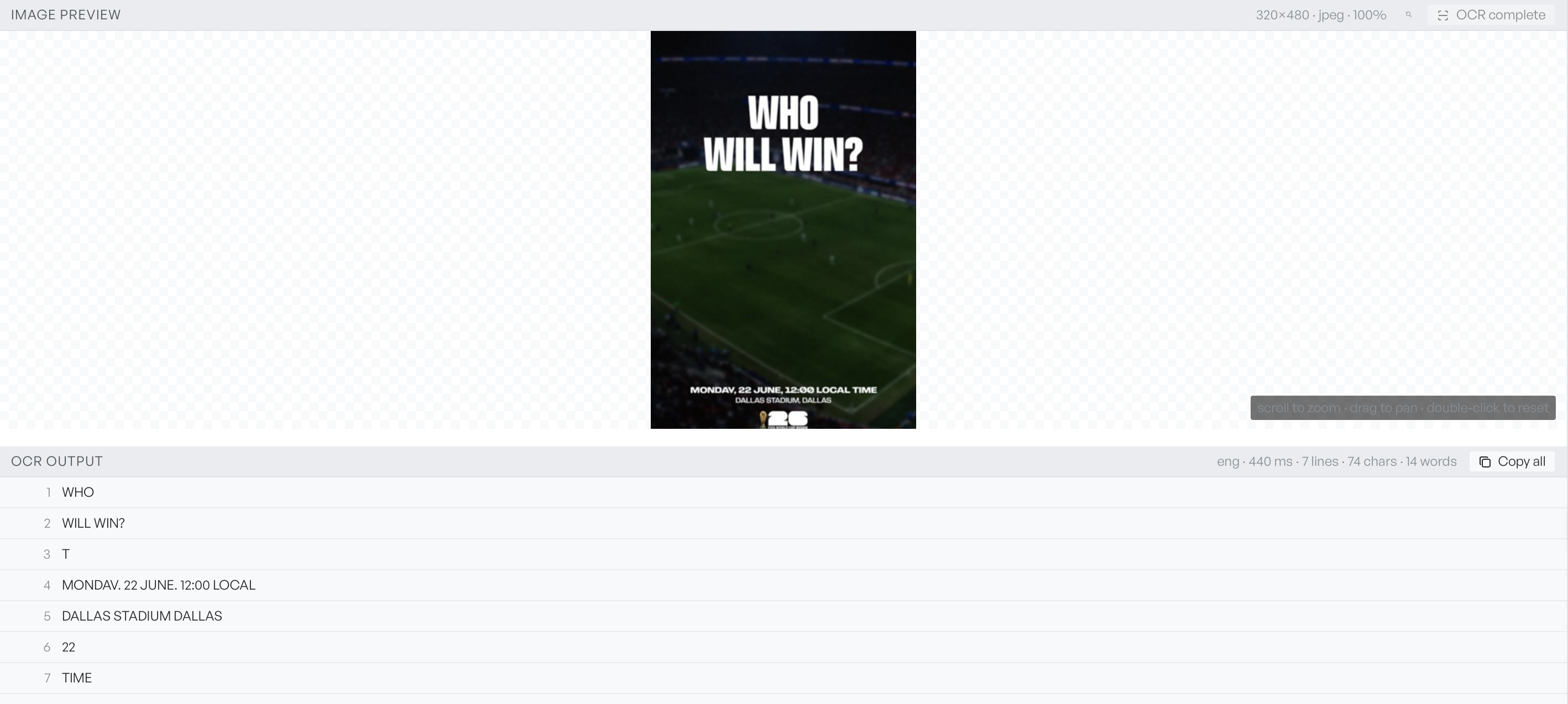
Image preview, before OCR#
Scroll to zoom, drag to pan, and double-click to reset the view. Use the wheel to zoom into a region of interest before you run OCR. The run uses the original native pixels at any zoom level.
A Run OCR button starts the recognition. A reset icon next to it returns the view to fit-to-card.
Run OCR#
Click Run OCR. While the run is in progress, the OCR output card shows a spinner and the current phase from the engine. You cannot start a second run on the same image. After a run, the button is disabled and reads OCR complete. You can retry a failed run.
OCR output, after running#
After a successful run, the OCR output shows every line the engine recognised, one row per line.
Hover any row to draw a highlight box on the image at that line's bounding box. The reverse works too: hover the image, and the line list scrolls to the matching row.
A Copy all button copies every line to your clipboard, separated by newlines.
When there is no result#
If the engine ran but found no text, the output card reads OCR ran successfully but no text was detected in this image. This is a normal outcome for photographs with no text content. If the engine failed, the card shows OCR failed with the error message underneath.