Read ASCII and Unicode strings#
Skim the text the analyser pulled out of the bytes for URLs, paths, error messages, and command-line flags.
The Content tab shows the strings the analyser pulled from the file. Use it to skim for URLs, error messages, embedded paths, command-line flags, or any other recognisable text.
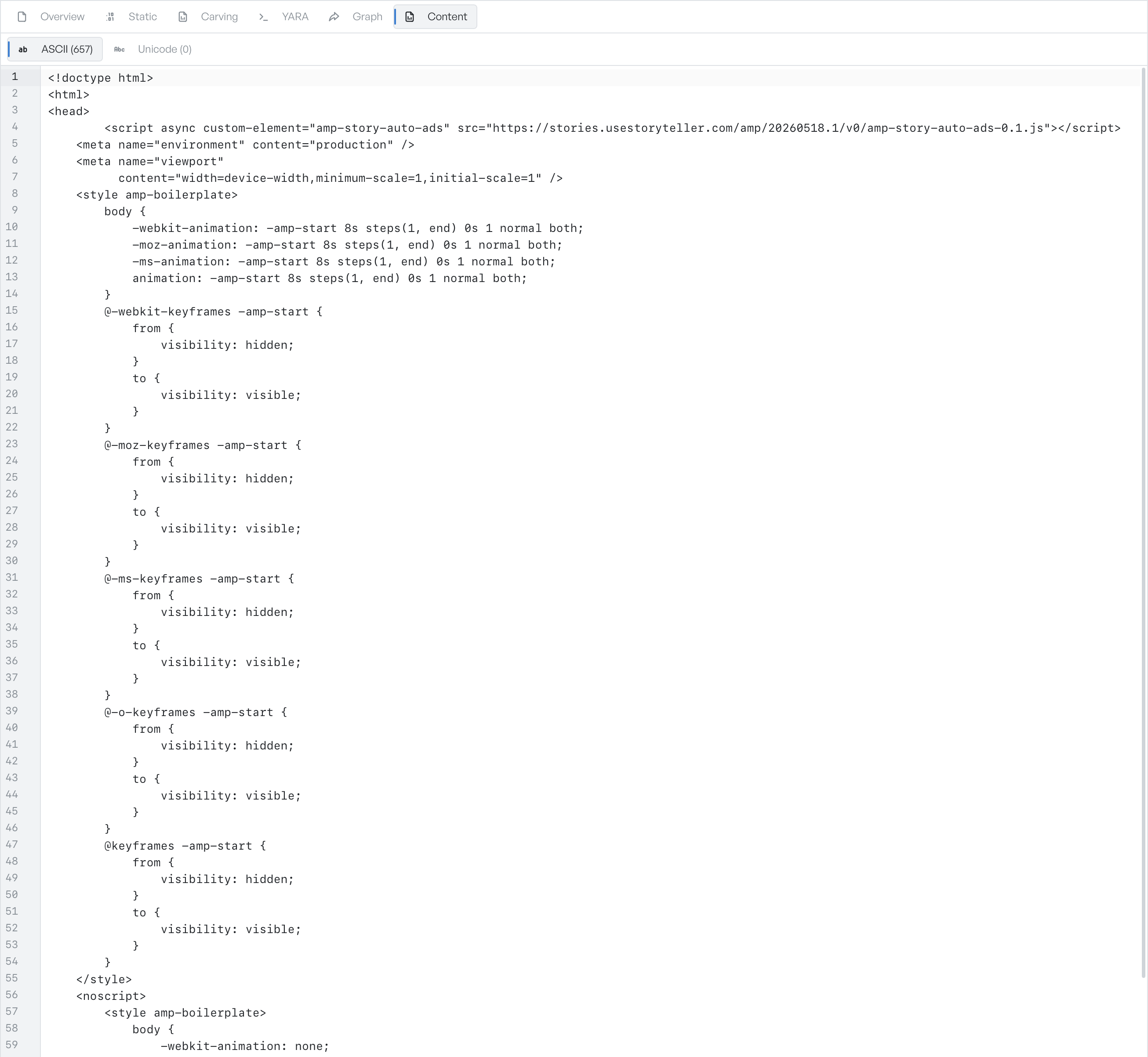
ASCII and Unicode#
The tab has two sub-tabs.
- ASCII shows printable 7-bit ASCII strings four bytes long or longer.
- Unicode shows UTF-16 strings four code units long or longer.
Each sub-tab label shows a count. The counts come from the analyser's full extraction. That extraction is wider than the sample in the editor.
The read-only editor#
The tab shows the strings in a read-only editor, one string per line.
You can scroll and page through the editor as you do in any other editor. Use the platform find shortcut to search for a substring. Select text with the mouse or the keyboard to copy it. Line wrapping is on by default, so long strings need no horizontal scroll.
What the sample shows#
The editor renders the analyser's sample, not the full extraction. The sample has a bound, so the editor stays responsive on very large files. The count on the sub-tab label still reflects the full extraction.
For exhaustive string analysis on a single file, run a YARA rule that matches the string you want. You can also use the Carving tab to find the byte regions and copy them out.