Read the report panel#
Keep the active file's name, hashes, tags, and extracted indicators in view while you move through the centre tabs.
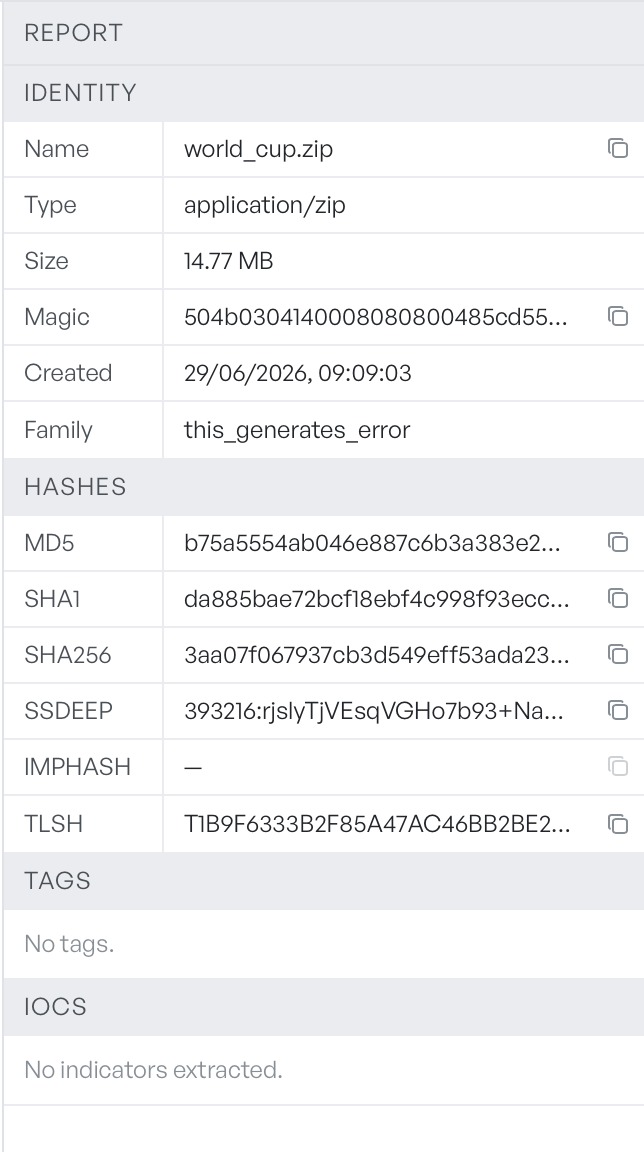
The report panel pinned to the right of the workspace mirrors the active file's identity. It does not change as you switch tabs, so the headline facts stay visible while you work through the centre column.
Identity#
The first section shows the bare facts about the file.
- Name is the file name as it was when you added the file.
- Type is the MIME type, taken from the magic bytes when known.
- Size is the on-disk size in bytes, KB, or MB.
- Magic is the file's magic bytes as hex.
- Created is the file's creation time.
- Family is the YARA rule family, if a rule matched.
A copy button next to the Name and Magic values copies the raw value to your clipboard.
Hashes#
The second section lists every hash for the file: MD5, SHA-1, SHA-256, SSDEEP, IMPHASH, and TLSH. A dash means the analyser did not produce that hash. SSDEEP and TLSH need a minimum file size, and IMPHASH applies only to PE imports.
Tags#
The third section is the tag list. Tags come from analyser traits and from YARA rule metadata, including the family, the severity, and the rule name. The tags are read-only here. Use them as triage signals. When a file has none, the section reads No tags.
IOCs#
The bottom section groups every indicator of compromise from the file's bytes and metadata. Each group shows a count and the first few values: URLs, domains, IPs, IPv6, emails, hashes, Bitcoin addresses, CVEs, MITRE ATT&CK techniques, registry keys, and paths.
A +N more link expands a group when it holds more values than fit inline. When the analyser extracts nothing, the section reads No indicators extracted. The full indicator set also appears in the Graph tab as connected nodes.
Collapse the panel#
Drag the divider between the centre column and the report panel to make the panel narrower. Drag past the collapse threshold to hide the panel. Drag it back to bring the panel into view again.