Add a comment to a row#
Write a note against one row or many, edit it later, and read it back in the Comment column.
A comment attaches a note to a row, so you can record what you found without a change to the trace. Comments appear in their own column, and the app keeps them for the session.
Add or edit a comment#
Right-click a row and select Add Comment. A small editor opens. Type your note, then select Save or press Enter to keep it. Select Cancel or press Escape to drop it. When a row has a comment, the same menu item reads Edit Comment.
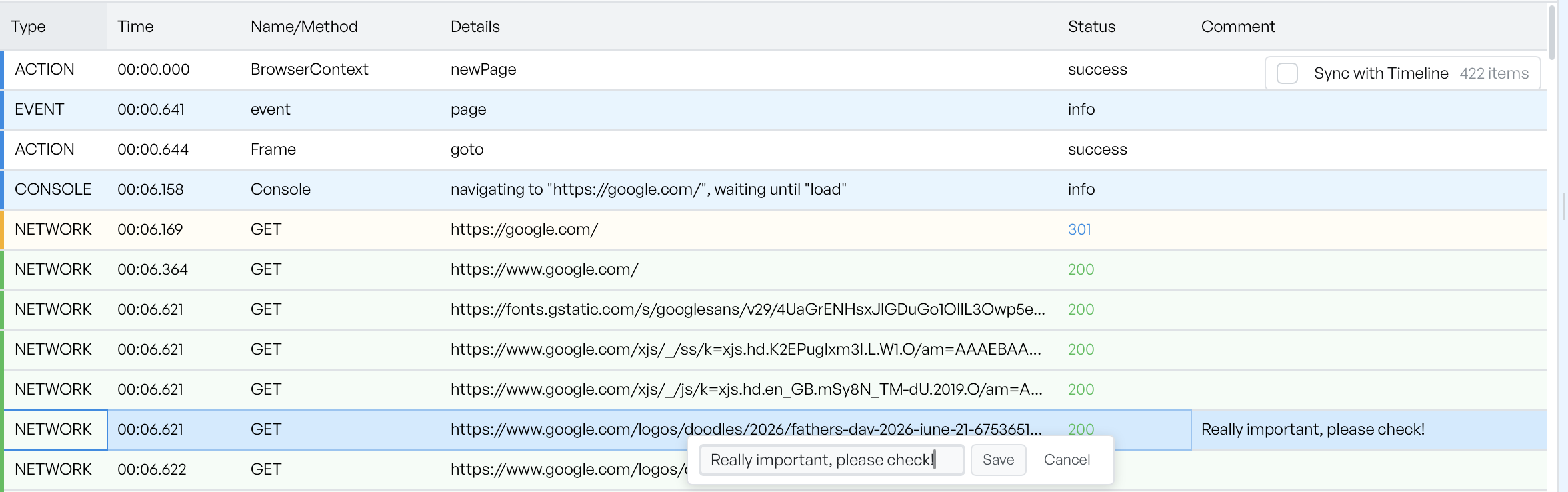
The Comment column appears the first time you add a comment to any row, so your notes stay visible as you scroll. To remove a comment, open it and save it empty.
Comment on many rows at once#
Select several rows before you open the menu to write the same note against all of them. The menu shows the count, for example Add Comment (3), and applies your text to each selected row.