What the inspector shows#
See how the right-hand panel follows whatever you select, and use its header, its search box, and its tabs.
The inspector is the panel on the right. It shows the detail of whatever you select in the events list, on the timeline, or with the element picker. Select nothing and it tells you so: select an action, event, or network request to fill it.
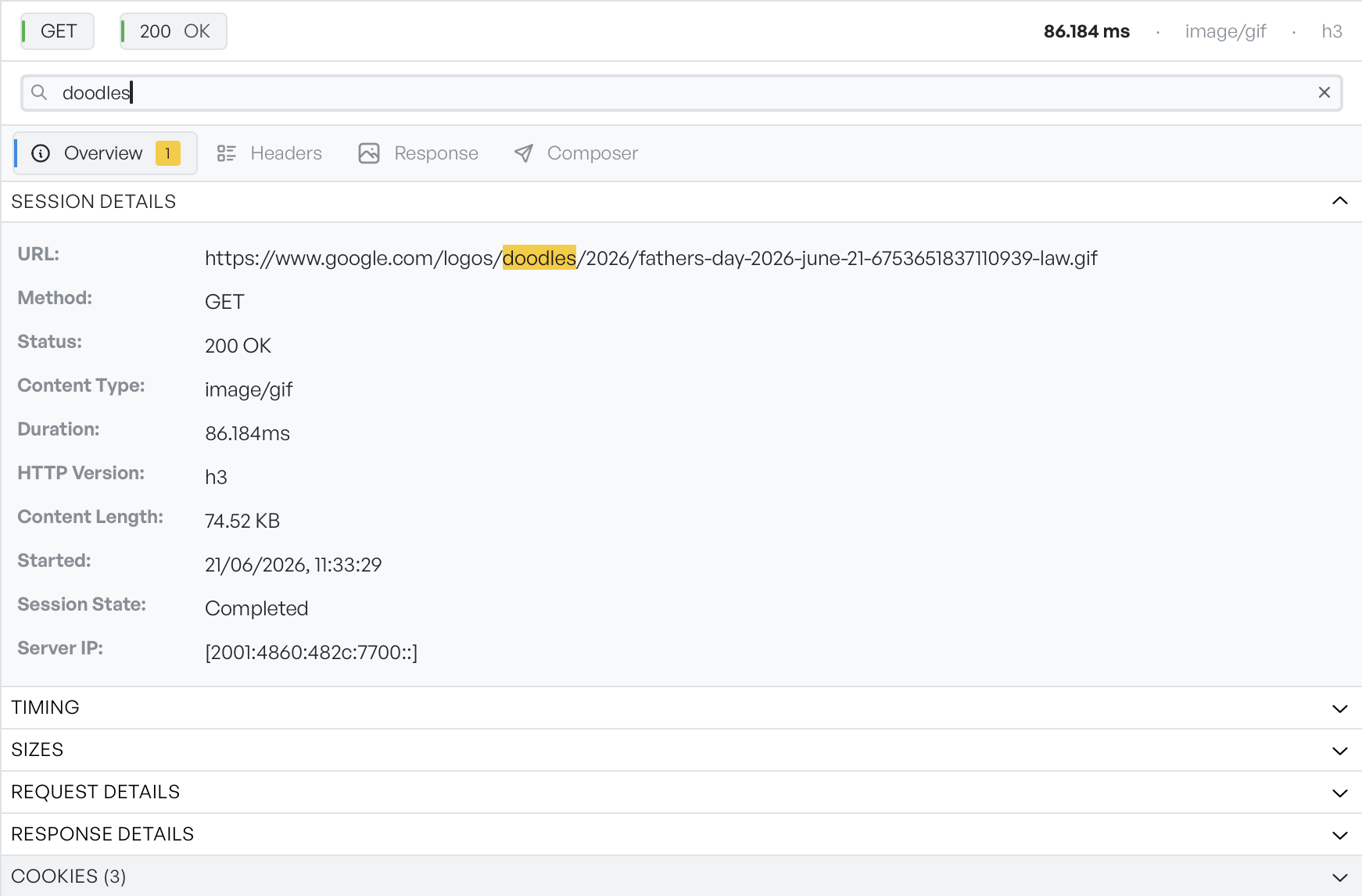
The panel keeps the same shape whatever you select. A header names the item with a badge or two, such as its name and whether it succeeded. A search box and a set of tabs follow it. The tabs change to fit what you select, so an action, an event, a console message, and a network request each show their own.
Search inside the detail#
The Search in all fields box narrows the detail to what you look for. In tables of properties it hides the rows that do not match and highlights the ones that do. In blocks of code, such as parameters or a response body, it highlights the matches and opens the section so you can see them. Any tab that holds a match shows a count next to its name, so you can tell where your term appears.
Detail for each row type#
Each kind of item has its own page:
Select an element in DOM mode and the inspector adds an Elements tab. See Inspecting elements.