Stream#
Read the bytes a TCP conversation carried, reassembled in order, as text or hex, one direction or both.
The Stream view reassembles a TCP conversation and shows the bytes the two sides exchanged, in the order they were sent. The Sequence view shows the shape of the exchange. The Stream view shows its contents: the request a client sent, the response a server returned, and everything in between as one readable payload.
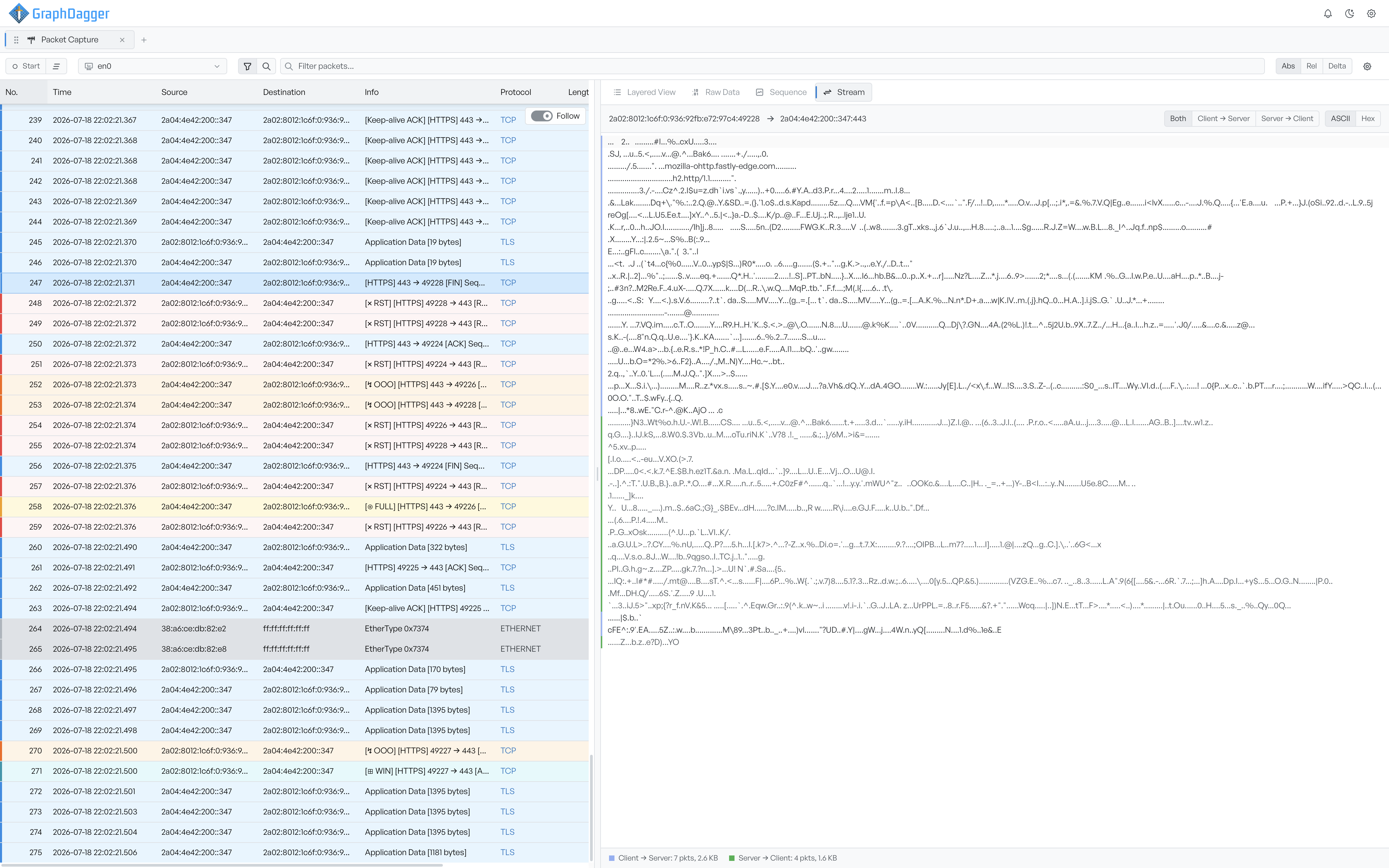
Open the Stream view#
There are two ways in. Select a live-captured TCP frame, and the pane gains a Stream tab between Sequence and Certificate. Or right-click any TCP row in the packet list and select Follow TCP Stream. That command selects the frame and opens the Stream tab in one step.
The Stream view is available only for TCP frames from a live capture. A frame qualifies when the workspace has grouped it into a stream and recorded its TCP flags. Frames read from an imported pcap file carry no reassembly state, so the tab does not appear for them.
Pick a direction and mode#
Two segmented controls decide what you see.
The direction control picks whose bytes to show:
- Both: interleaves the two sides in capture order.
- Client → Server: shows only what the client sent.
- Server → Client: shows only the reply.
In the interleaved view, the two directions carry a colour accent, so you can tell them apart at a glance.
The mode control switches between ASCII and Hex. ASCII renders the payload as text, which is the quickest way to read a plain-text protocol. Hex shows the raw bytes with an offset, hex, and character column, for binary payloads or when you need to confirm exact bytes.
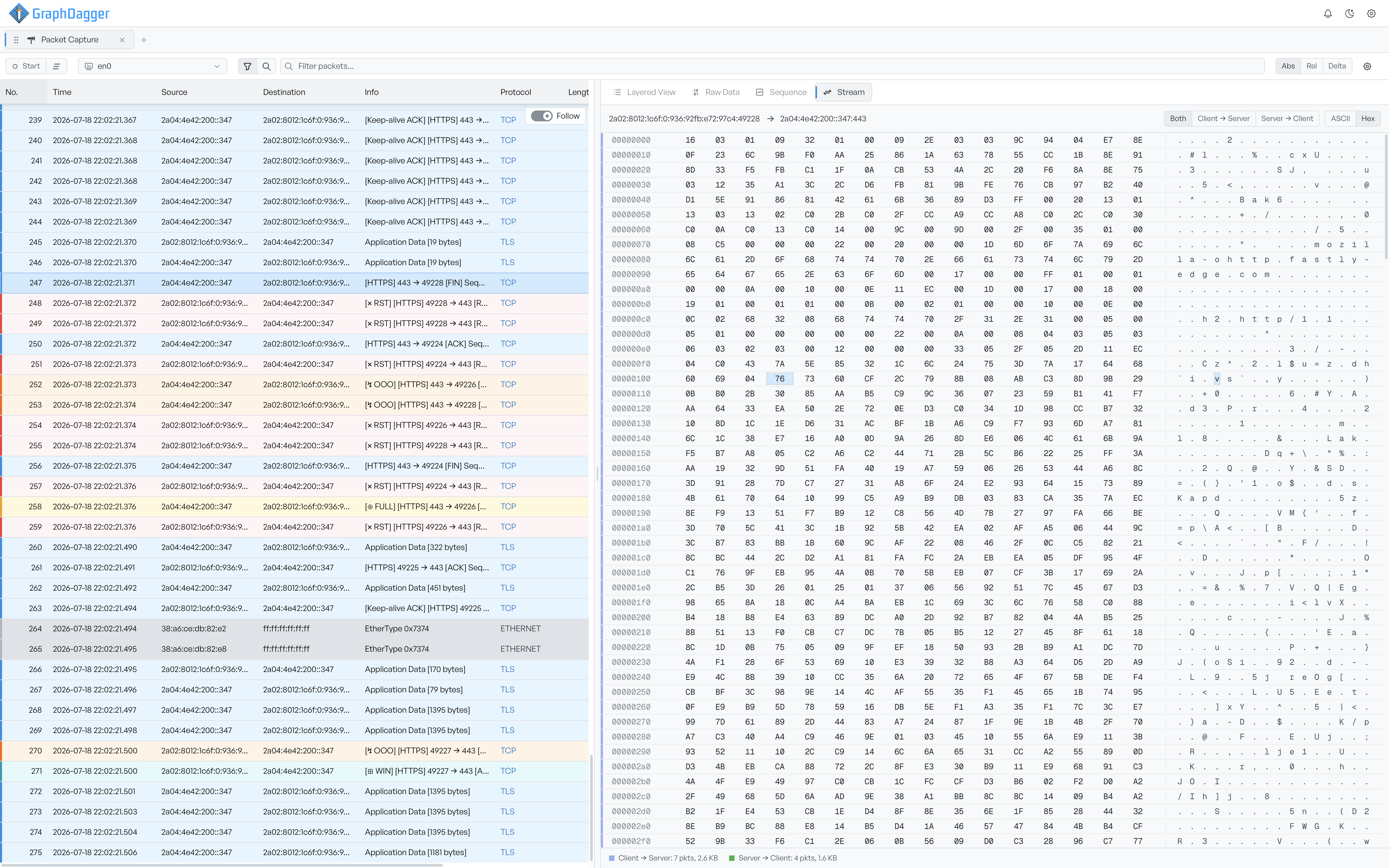
The traffic footer#
A footer under the view summarises the traffic each way: the packet count and total size for Client → Server, and the same for Server → Client. Use it to see at a glance which side sent the bulk of the data.
Truncation and gaps#
Two badges appear when they apply.
A Truncated badge means the conversation was longer than the per-stream reassembly buffer, so the content you see is cut off. The ASCII view shows the first part of the payload and tells you how many bytes it left out. Switch to Hex to page through the full reassembled payload.
A Gaps badge means some segments are missing. Packets were lost, or the capture started after the conversation had already begun. The reassembled content skips those bytes, so a piece of the payload can be absent.
Refresh a live stream#
While a capture still runs, a refresh control pulls the latest bytes for the stream you view, so a long-lived connection updates as more data arrives. The workspace hides the control once the capture stops, because the stream can no longer grow.
When there is nothing to show#
Some connections carry no payload to reassemble. A conversation of only acknowledgements, keep-alives, or an incomplete handshake has no application data. The view says so instead of an empty pane. If the workspace cannot find reassembled data for the stream, it reports that too.
Where to go next#
Use the Sequence view alongside the Stream view. Sequence tells you how the two sides exchanged the segments. Stream tells you what those segments carried. For the raw bytes of a single frame rather than the whole conversation, use Raw Data.