Write and save rule source#
Open a pack in the inline editor to change its source, start a rule from the built-in template, or take a custom rule out of the sidebar.
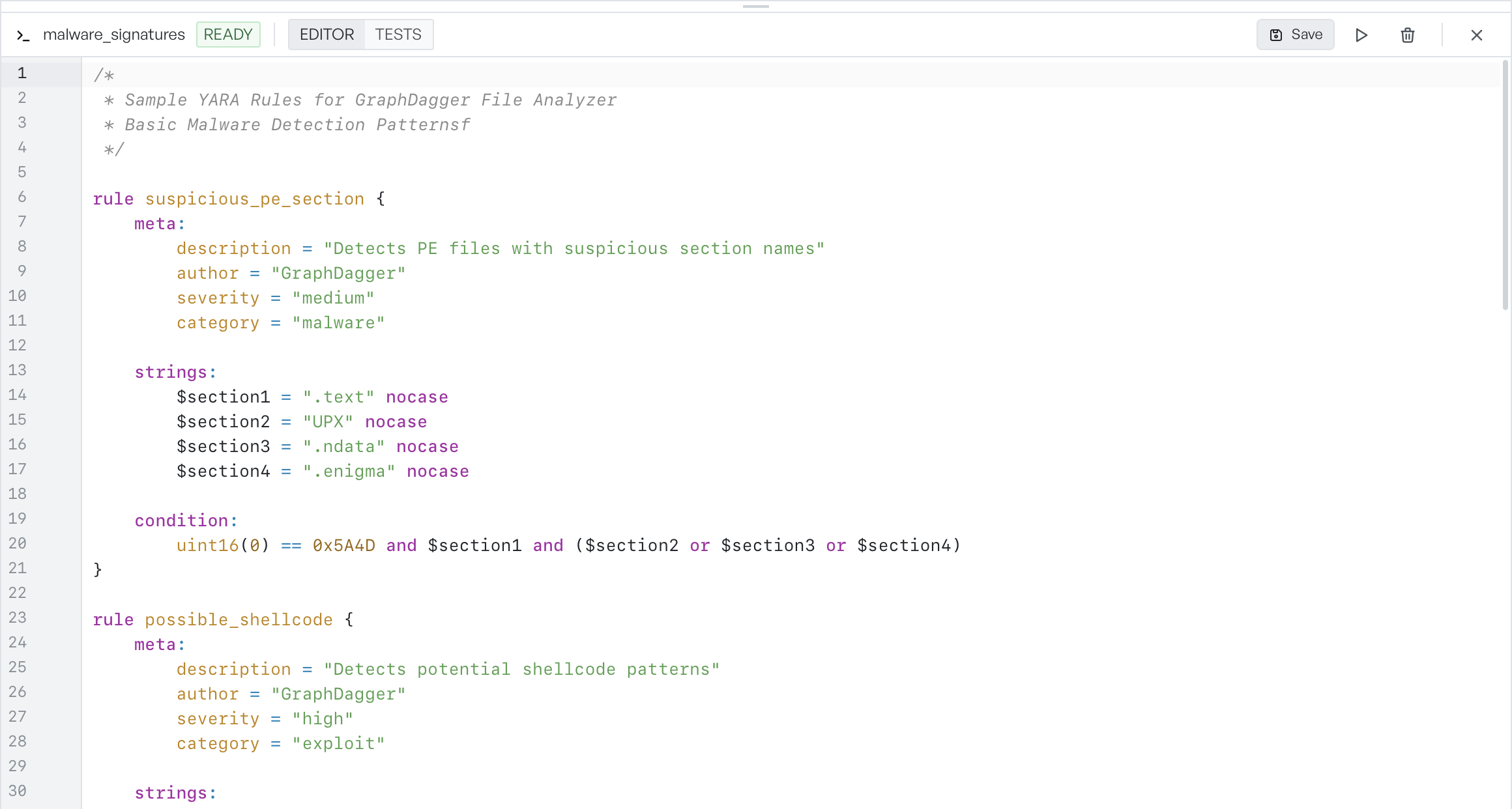
The editor pinned to the bottom of the YARA tab lets you read and modify rule source without leaving the workspace.
Open the editor#
The editor opens when you click the pencil next to a rule in the sidebar. The rule's full pack source loads into the editor.
The editor has its own header bar.
- Status badge:
READY,EDITING, orINVALID, next to the pack name. - EDITOR / TESTS toggle: switches between the rule source and the Tests view for sample-driven testing.
Run, save, and close controls sit in the same bar.
Edit and save source#
The editor is tuned for YARA, with syntax highlighting for strings, conditions, meta blocks, and comments.
- Save persists changes back to disk and re-loads the rule pack.
- The
INVALIDbadge replacesREADYwhen the editor finds a syntax error. Hover the badge to see the line and the error. - The editor prompts you to save or discard unsaved changes when you close it.
You can resize the editor surface vertically. Drag its top edge to grow or shrink it between 150 and 500 pixels.
Write a new rule#
Click the plus at the top of the sidebar to start a fresh rule. The editor opens with a placeholder rule named my_new_rule. The placeholder uses a template that has every section. Edit the placeholder, give it a real rule name, and save. The rule joins your custom pack in the sidebar.
Remove a rule#
Each rule in the sidebar has a bin next to it. Click it and confirm to remove the rule. You cannot delete built-in default rules, so those rows have no bin.