Read matches on the hex dump#
Each rule gets its own colour on the bytes, so you can jump to an offset and see exactly which pattern hit there.
The hex dump in the centre of the YARA tab is where you see the actual bytes that matched a rule. Each rule has its own colour, and every matched byte range is shaded in that colour.
The hex dump#
The dump is a 16-column view. A header shows the row count and an offset jump field. Type a hex offset such as 0x00f1a0, then press Enter or click Jump. The dump scrolls to that offset. On a large file the dump is virtualised, so scroll with the wheel or jump to a specific offset.
Match highlights and the sidebar#
The dump shades every byte that matches a YARA pattern in the rule's colour. GraphDagger builds the colour map once per session, so the same colours apply in the dump and the sidebar.
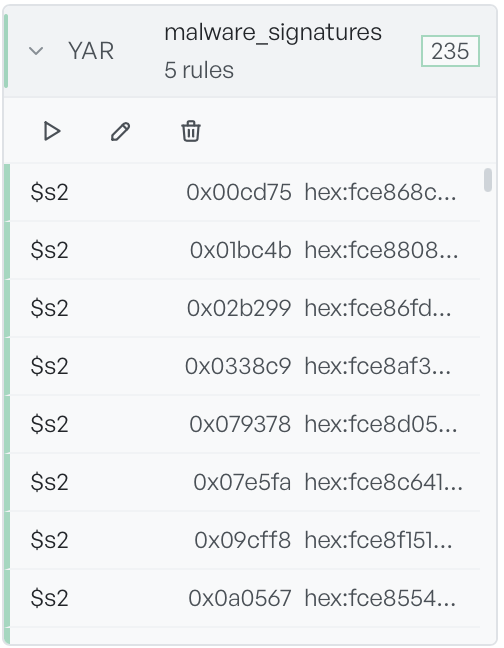
Each match row names the string variable that hit, its offset, and the matched value.
Click a match, and the hex dump scrolls to that offset. It re-applies the highlight if the offset had scrolled out of view.
Multiple rules on the same bytes#
When two rules match overlapping byte ranges, both colours appear striped. The sidebar still lists each match separately, so you can drill into either rule.
When a rule has no matches#
A rule that ran and found no matches shows No matches under its row in the sidebar. The hex dump still renders. It shows no highlights for that rule.