Compare two requests#
Set one entry as A and another as B to see exactly which fields, headers, body lines, and timings changed between them.
Comparison holds two requests side by side and shows you where they differ. Use it to answer one question: this one worked and that one did not, so what changed? The answer is often a request that returned a different status, a header that was present one time and missing the next, or a body that came back shorter than expected.
Pick the two requests#
You choose the pair from the entries list. Right-click a row and select Set as Compare A. Then right-click a second row and select Set as Compare B. When you set both, the inspector on the right switches to the comparison view. A tick in the menu marks the current A and B entries. Clear Compare removes them and returns the inspector to its normal request view.
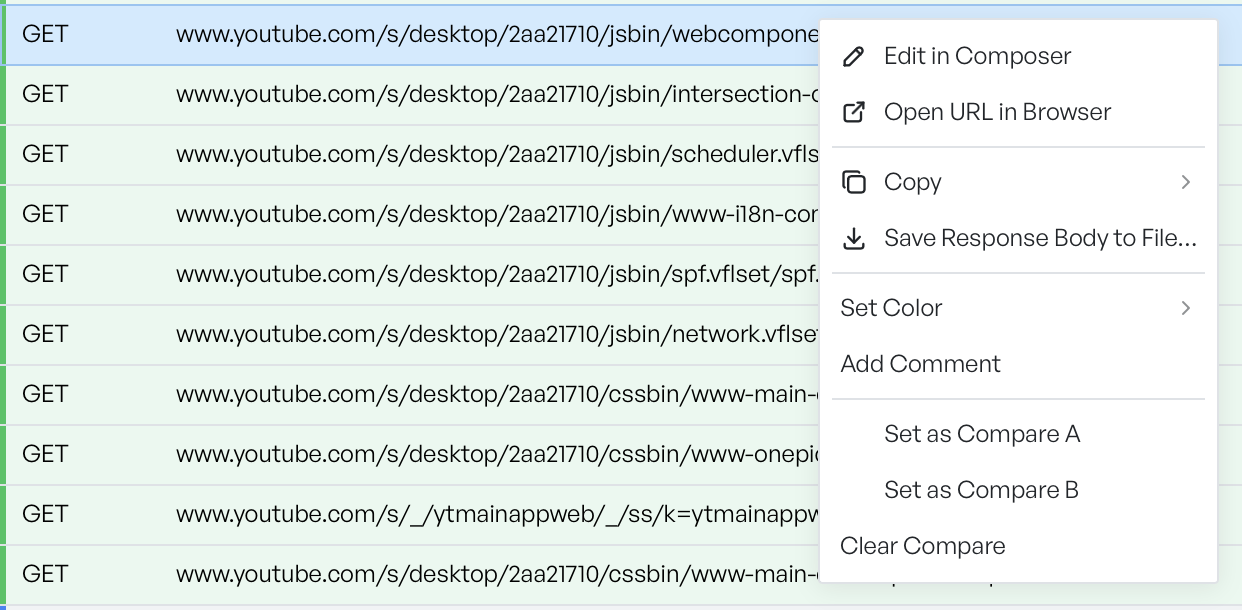
The two rows do not need to be from the same host or the same session. You can compare any two requests in the list.
Read the comparison tabs#
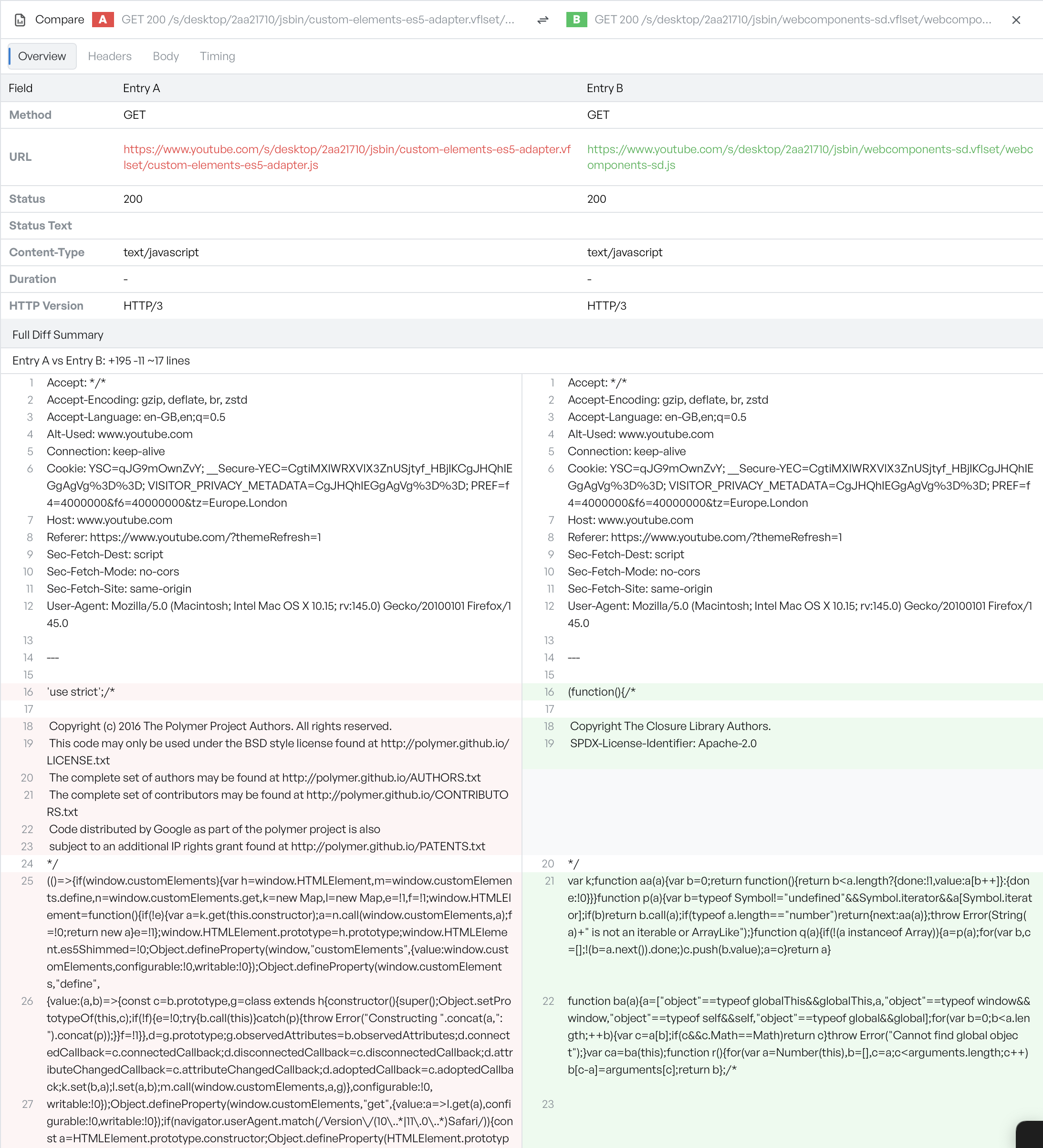
The comparison view labels the two requests A and B in its header, A in red and B in green. A Swap A/B control flips which is which. A close control ends the comparison. The rest of the view is a set of tabs. Each tab compares one part of the pair.
The Overview tab lines up the essentials in a table: method, URL, status and status text, content type, duration, and HTTP version. Where a field differs, the view marks the A value in red and the B value in green. A changed status or content type stands out immediately. When the requests differ more deeply than the table shows, a Full Diff Summary appears below it. The summary keeps a running count of added, removed, and changed lines.
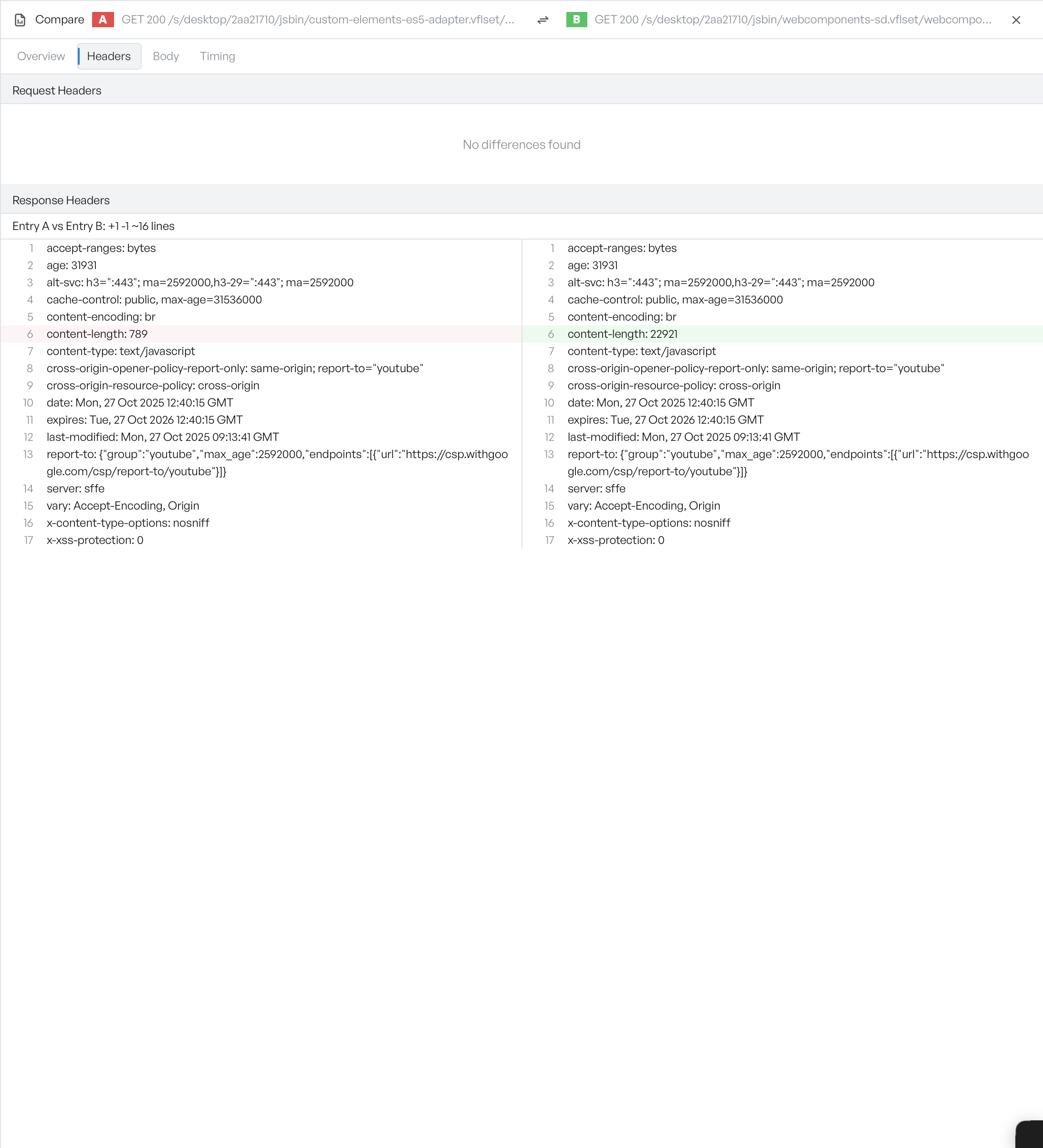
The Headers tab compares request and response headers in turn. It marks each header that was added, removed, or changed, and reports where the two sides match. For example, a response of a different length appears here as a changed content-length.
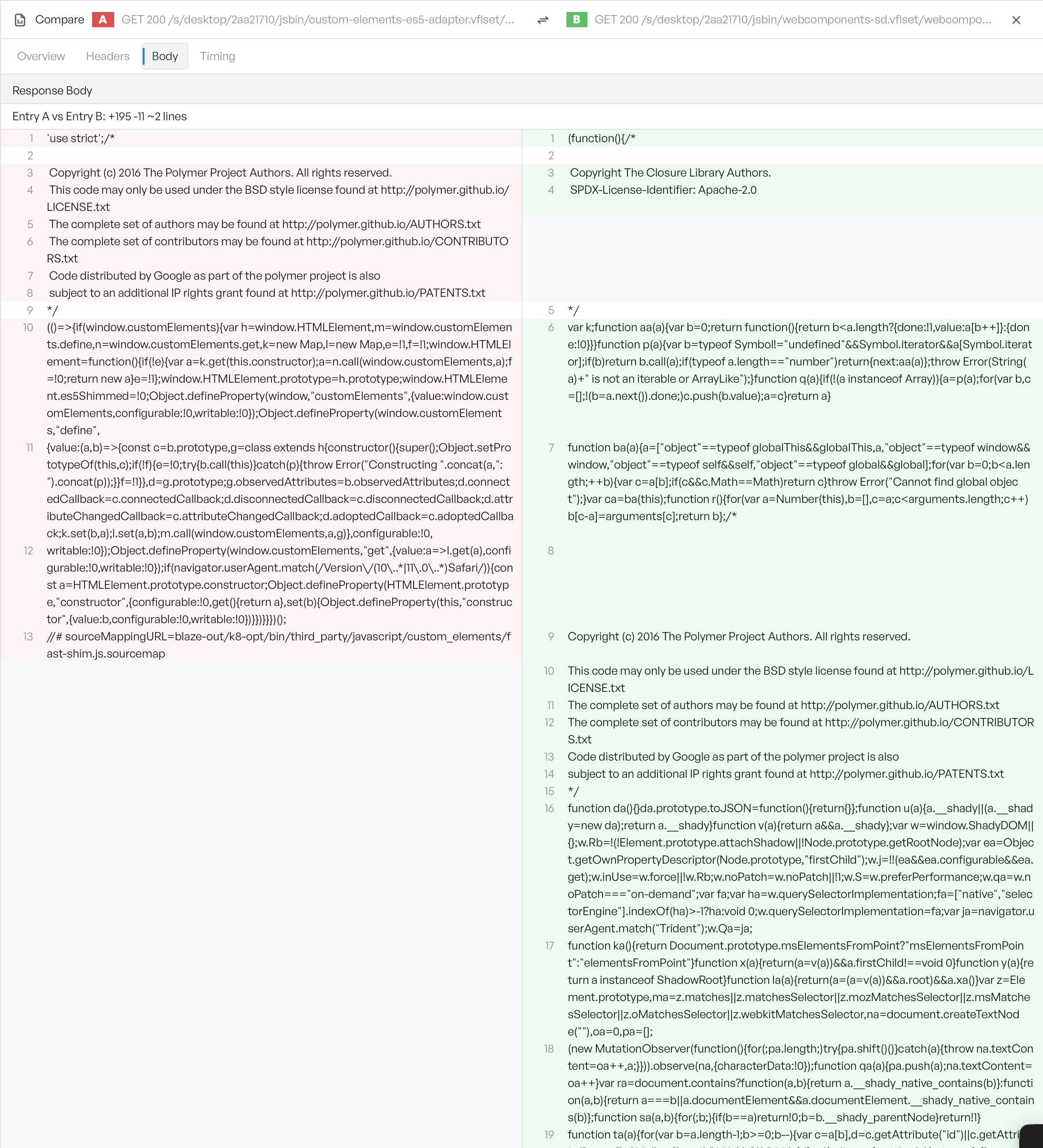
The Body tab puts the two response bodies side by side and highlights the differences line by line. A summary gives the number of added, removed, and changed lines.
The Timing tab compares the two requests phase by phase, so you can see where one spent time that the other did not.
Comparison works for a live recording and for an opened HAR file, because you pick the pair from the same entries list in both cases. For the list itself, see inspecting requests.