Threat Intel blocks#
Pull the indicators out of a report or a pasted log, rewrite them so nobody clicks them by accident, and package them as STIX 2.1 or OpenIOC.
Threat Intel blocks pull indicators out of unstructured text and get them into a form you can share. A typical run starts with a report, an email or a pasted log. The block finds the addresses, domains, URLs and hashes inside it. You end with a list you can hand to a colleague or load into another tool.
Extract IOCs#
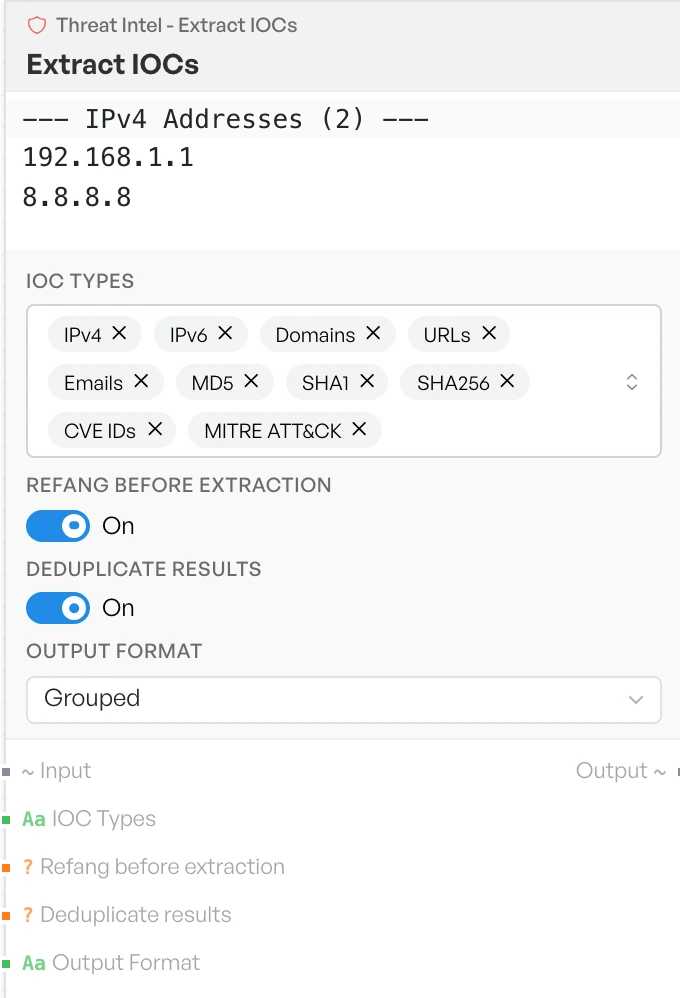
Scans the input for every indicator type you have selected and returns what it finds. Grouped output puts each type under a header that carries its count. If nothing matches, the block returns 'No IOCs found.'.
- IOC Types - the indicator types to look for. Options:
IPv4,IPv6,Domains,URLs,Emails,MD5,SHA1,SHA256,CVE IDs,MITRE ATT&CK. All ten are selected by default. - Refang before extraction - rewrites defanged text back to its live form before the scan, so you do not miss indicators that someone made safe for sending. Default ON.
- Deduplicate results - drops repeat matches within each type. Default ON.
- Output Format - how the results are laid out. Options:
Grouped,Flat,JSON(defaultGrouped).
Note The block matches domains against a fixed list of common top-level domains. It does not pick up domains on unusual top-level domains, so check the input by eye if you expect them.
Regex Extract / Replace#
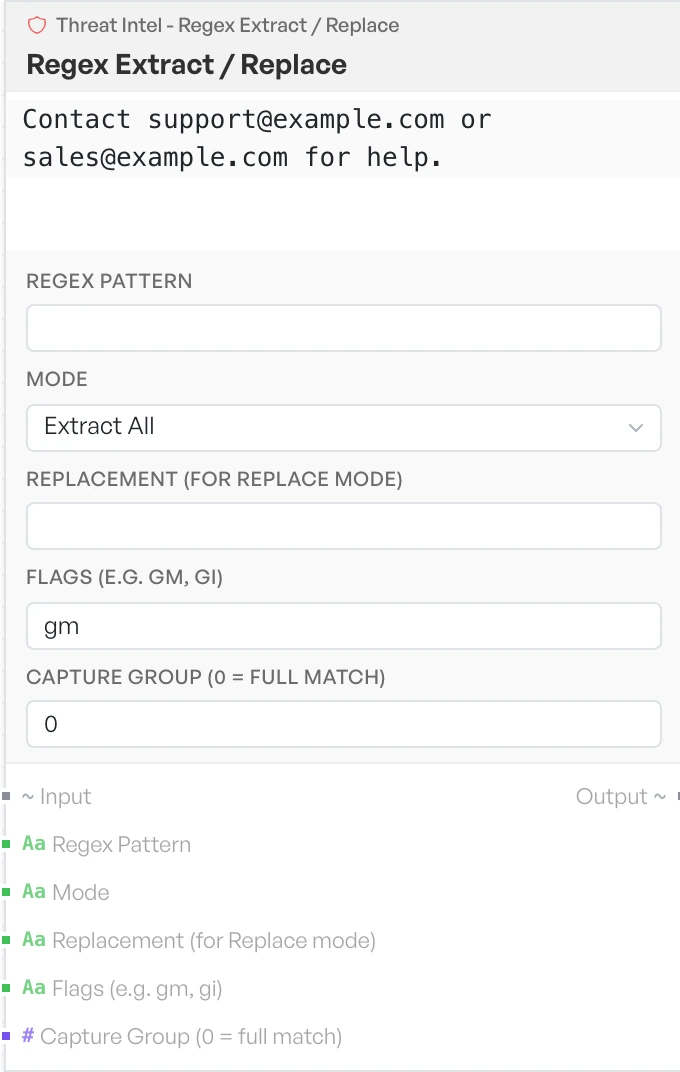
Runs a regular expression over the input to pull out matches, rewrite them, or cut the text into pieces. An empty pattern returns the input unchanged. An invalid pattern returns a message starting 'Regex Error:', and a valid pattern that matches nothing returns 'No matches found.'.
- Regex Pattern - the expression to run. Default empty.
- Mode - what to do with the matches. Options:
Extract All,Extract First,Replace,Split(defaultExtract All). - Replacement (for Replace mode) - the text to put in place of each match. Default empty.
- Flags (e.g. gm, gi) - the expression flags. Default
gm. - Capture Group (0 = full match) - which captured group to return. Default
0.
Defang / Refang#
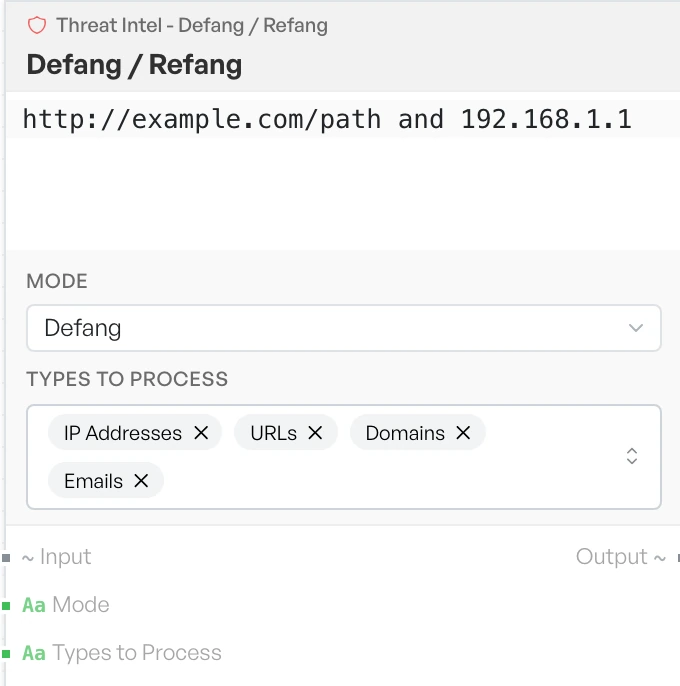
Rewrites indicators so nobody can click them by accident, or puts them back into working form. Use Defang before you paste an indicator into a ticket or an email. Use Refang before you feed one to a tool.
- Mode - the direction to run in. Options:
Defang,Refang(defaultDefang). - Types to Process - which indicator types to rewrite. Options:
IP Addresses,URLs,Domains,Emails. All four are selected by default.
Warning The types are not additive. The URL rule takes precedence over the domain rule. The IP and email rules apply only when you select neither URLs nor Domains. With all four types selected, only the URL rule runs. Select one type at a time if you need a specific transform, or use the single-purpose blocks in the Networking category.
IOC to STIX 2.1#
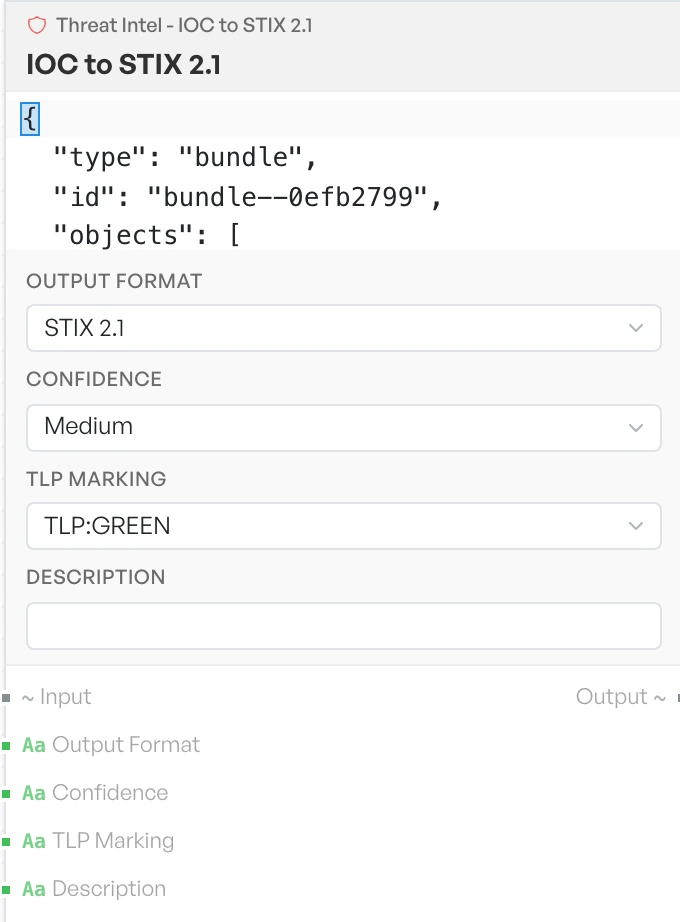
Turns the indicators in the input into a bundle you can share with other teams or load into a threat platform. It always extracts addresses, domains, URLs, emails and the three hash types, and it always refangs the text first. If it finds nothing, it returns 'No IOCs found to convert.'.
CVE and MITRE ATT&CK identifiers are not included, even though Extract IOCs can find them.
- Output Format - the bundle format to produce. Options:
STIX 2.1,OpenIOC(defaultSTIX 2.1). - Confidence - how much weight to attach to the indicators. Options:
Low,Medium,High(defaultMedium). - TLP Marking - the sharing marking applied to the bundle. Options:
TLP:WHITE,TLP:GREEN,TLP:AMBER,TLP:RED(defaultTLP:GREEN). - Description - free text added to every indicator. Default empty.